Table of Contents
- Table of Contents
- What dockurr/windows Actually Is
- What Was Left in the Storage Directory
- Bringing It Back With One Command
- NETWORK=nat Silently Became passt
- Checking That It Works Without Touching a Mouse
- Making It Permanent With a Quadlet
- What It Uses: RAM, CPU and Disk
- WinBoat or Plain dockurr/windows?
- Caveats
- Conclusion
A few weeks ago I set up WinBoat on my Fedora laptop. WinBoat is a nice Electron frontend that runs Windows applications as if they were Linux windows. It worked. Then I did some housekeeping on the machine, removed things I thought I no longer needed, and the WinBoat UI stopped finding its Windows.
The interesting part is that WinBoat never was the Windows machine. It is a frontend for dockurr/windows, a container image that runs Windows in QEMU with KVM. The VM itself is a disk image plus a few state files in a directory. My cleanup had removed the container and the image. It had not touched the directory.
The short version: one podman run with the original storage directory mounted at /storage, and the existing Windows 11 install booted straight to the lock screen. No reinstall, no WinBoat, no root.
What dockurr/windows Actually Is
The project lives at github.com/dockur/windows and is published both as docker.io/dockurr/windows and as ghcr.io/dockur/windows. Note the spelling: the GitHub organisation is dockur, the Docker Hub account is dockurr.
Inside the image there is no Windows. There is a Debian 13 userland, QEMU, a web VNC viewer, networking helpers and a large collection of shell scripts under /run. Those scripts do the real work:
| Job | How the container does it |
|---|---|
| Get Windows | Downloads the installation ISO for the chosen VERSION, or uses one you mount at /custom.iso |
| Install Windows | Builds an unattended answer file and runs Setup without interaction |
| Run Windows | QEMU with KVM, a q35 machine, UEFI firmware, VirtIO disk and network |
| Show the screen | noVNC on port 8006, in the browser |
| Daily access | RDP on port 3389 inside the guest |
| Network | NAT with a tap device, or user-mode networking with passt |
| Files | A Samba share that appears as Shared on the Windows desktop |
On my running container, the QEMU command line confirms that picture: accel=kvm, -cpu host, four cores, 14 GiB of memory, a raw data.img attached through virtio-scsi, and the pflash pair windows.rom and windows.vars for UEFI.
The VERSION variable picks what gets installed. The README lists everything from 95 and 98 through xp, 7u, 10, 11, the LTSC and Enterprise variants, Windows Server 2003 to 2025, Tiny11 and even ReactOS. The default is Windows 11 Pro. ARM64 Windows lives in a separate image, dockur/windows-arm.
The project is explicit about licensing: it does not distribute Windows, the keys in its code are Microsoft’s generic installation keys, and you need your own valid license. A running container is not an activated Windows.
What Was Left in the Storage Directory
WinBoat had pointed the container’s /storage at ~/winboat. This is what survived my cleanup:
| File | Size | Purpose |
|---|---|---|
data.img |
64 GiB apparent, 18 GiB on disk | The Windows system disk, a sparse raw image |
windows.rom |
3.5 MiB | UEFI firmware code |
windows.vars |
528 KiB | UEFI variables, including the boot entries |
windows.mac |
18 bytes | The guest’s MAC address, so Windows sees the same NIC |
windows.base |
13 bytes | The ISO the install came from, here win11x64.iso |
windows.ver |
5 bytes | The image version that did the install, 6.05 |
windows.boot |
0 bytes | Marker that installation finished |
That empty windows.boot file matters most. The install script checks for it (hasCompletedInstall in /run/install.sh) and, if it is there, skips the download and Setup and boots the disk. Delete the directory and you lose Windows. Delete the container and the image and you lose nothing but a pull.
The original WinBoat compose file was also still in ~/.winboat/podman-compose.yml, so I knew the exact image tag and settings: ghcr.io/dockur/windows:6.05, VERSION=11, 14G of RAM, four cores and a 64G disk. It also contained my Windows password in plain text, which is worth knowing if you back that directory up somewhere.
Bringing It Back With One Command
Both podman ps -a and podman images were empty. I pulled the same tag WinBoat had used. The resulting image ID was identical to the one in WinBoat’s install log, which is a nice confirmation that I was really getting the same bits:
podman pull ghcr.io/dockur/windows:6.05
Version 6.06 and latest exist already. I deliberately stayed on the version that installed this VM, because “get it working again” and “upgrade it” are two separate changes.
Then:
podman run -d --name windows \
  -e VERSION=11 -e RAM_SIZE=14G -e CPU_CORES=4 -e DISK_SIZE=64G \
  --device /dev/kvm \
  -p 127.0.0.1:8006:8006 \
  -p 127.0.0.1:3389:3389/tcp -p 127.0.0.1:3389:3389/udp \
  -v ~/winboat:/storage:Z \
  --stop-timeout 120 \
  ghcr.io/dockur/windows:6.05
A few notes on the flags, because each one is there for a reason:
/dev/kvmis the whole point. Without it, the image does not quietly fall back to software emulation:init.shreports that KVM is unavailable and exits with code 88. Software emulation needs an explicitKVM=N, and the image itself warns that this is about ten times slower. On my Fedora installation the device is world-accessible (crw-rw-rw-), so my rootless container can open it.- Ports on
127.0.0.1keep the web viewer and RDP off the network. WinBoat did the same in my installation, but with random host ports. I wanted fixed ones. :Zrelabels the storage directory for SELinux with a label private to this container. WinBoat usedprivileged: true, which switches labeling off entirely. I would rather not run a VM container privileged when a label does the job.- No
NET_ADMIN, no/dev/net/tun. The README’s example includes both, and so did WinBoat. In the 6.05 scripts,/dev/net/tunis only used by NAT setup, andNET_ADMINby NAT, macvtap and iptables. None of that happens in rootless mode (more on that below). I tested without them: the guest booted in passt mode, RDP login worked and Windows had network traffic. With rootful Podman or NAT networking you need them again. --stop-timeout 120gives Windows up to two minutes to shut down after the container’s entry script sends an ACPI shutdown through the QEMU monitor. Podman’s default is ten seconds beforeSIGKILL. My idle guest needed about six seconds forpodman stop, but a Windows that is installing updates will need far more.USERNAMEandPASSWORDare missing on purpose. They feed the unattended installer. On an installed disk Windows already has its accounts.
Twenty seconds later the log said:
❯ Starting Windows for Podman v6.05...
❯ Warning: you are using the BTRFS filesystem for /storage, this might introduce issues with Windows Setup!
❯ Guest: 192.168.4.12 (Windows)  |  Mode: User (passt)  |  MAC: 02:CA:4A:33:6E:F4
❯ Booting Windows using QEMU v11.1.0...
BdsDxe: starting Boot0005 "Windows Boot Manager" from HD(1,GPT,...)/\EFI\Microsoft\Boot\bootmgfw.efi
❯ Windows started successfully, visit http://127.0.0.1:8006/ to view the screen...
The BTRFS warning is about Setup. My install was done weeks ago on the same Btrfs filesystem and the existing disk booted fine. If you are starting fresh on Btrfs, take that warning seriously before the first install.
NETWORK=nat Silently Became passt
The line that caught my eye was Mode: User (passt). My first run had actually copied -e NETWORK=nat and --cap-add NET_RAW straight from WinBoat’s compose file, and there was even a podman-compose.yml.before-nat next to it. At some point I had switched WinBoat from user to nat, added NET_RAW and /dev/net/tun, and assumed that changed something. The log disagreed, so I read the scripts. The container detects rootless mode from its UID mapping:
if [[ "$uid_map" == "0 0 4294967295" ]]; then
  ROOTLESS="N"
else
  ROOTLESS="Y"
fi
NAT mode starts by creating a bridge with ip link add ... type bridge. In my rootless container that fails, and network.sh returns without printing the error when ROOTLESS is set. The caller then tears down what it created, sets NETWORK="user", and only prints the “falling back to user-mode networking” warning if the container is not rootless. In rootless mode the fallback is treated as expected, and the image keeps quiet about it.
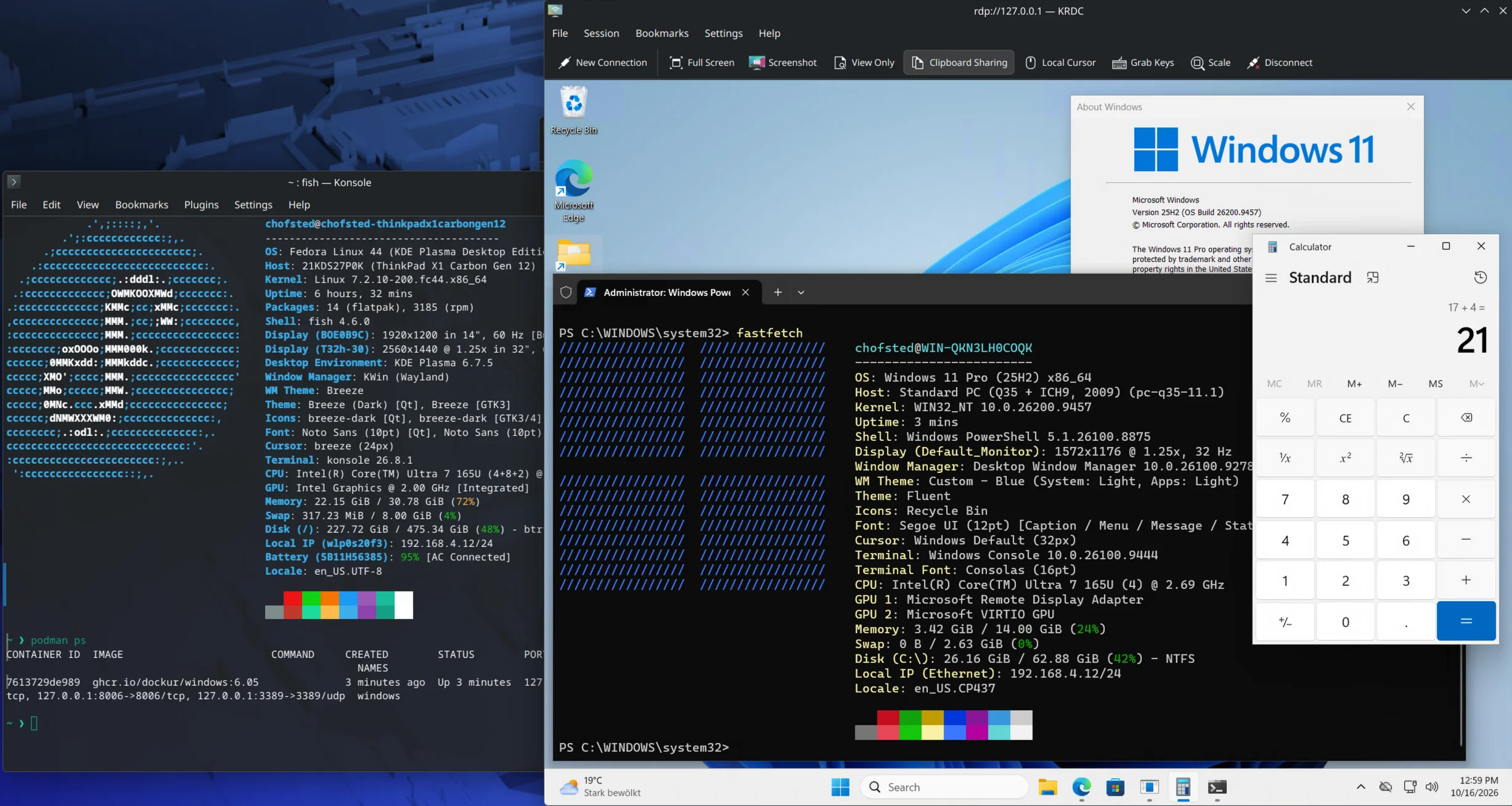
So in my rootless setup, that whole before-nat change had no effect. Windows was on passt before, and it is on passt now. The screenshot at the top shows the result: fastfetch inside Windows reports 192.168.4.12/24 as its Ethernet address, the same address the host has on wlp0s20f3. passt hands the guest a copy of the host’s address instead of putting it on a network of its own. That is fine for what I do: outbound traffic works, and the published ports reach RDP and the web viewer.
What it means: Windows has an IP address inside the guest, but not a separately reachable address on the LAN. To expose another Windows service, you need two forwarding layers: the port in USER_PORTS, so passt forwards it into the guest, and a matching -p or PublishPort, so Podman forwards it from the host into the container.
If you want Windows to get its own DHCP lease from your router, the README documents a macvlan network combined with DHCP=Y, which switches the guest to macvtap. That is a substantially different setup, and in practice it means rootful container networking. It is also a poor fit for my laptop: macvlan and macvtap on a Wi-Fi client interface like wlp0s20f3 generally do not work, because the access point only accepts frames from the MAC address that associated with it.
Checking That It Works Without Touching a Mouse
The web viewer answered:
$ curl -s -o /dev/null -w '%{http_code}\n' http://127.0.0.1:8006/
200
For RDP, an open port only proves that something listens. I wanted to know that my account still logs in. FreeRDP has an /auth-only mode that runs the NLA handshake and exits without opening a window:
xfreerdp /v:127.0.0.1 /u:chofsted /p:"$PASS" /cert:ignore /auth-only
One trap here. FreeRDP 3.32.1 logs the result as Authentication only, exit status 1 on success, at ERROR level, followed by ERRCONNECT_CONNECT_CANCELLED. That looks like a failure. It is not. With a deliberately wrong password, the same command fails earlier with CONNECTION_STATE_NLA status STATE_RUN_FAILED and logs exit status 0.
The logged number is not the process exit code. The shell’s $? was the reliable signal:
| Password | Log line | $? |
|---|---|---|
| Correct | Authentication only, exit status 1 |
0 |
| Wrong | Authentication only, exit status 0 |
134 |
134 means FreeRDP aborted, not that it exited cleanly with an error. I saw the same result on repeated runs. These are observations with FreeRDP 3.32.1 against this one Windows 11 guest. Do not assume they mean the same thing with other FreeRDP versions or RDP security settings, and always test a wrong password first. The Kerberos Preauthentication failed lines in between are FreeRDP trying Kerberos first and falling back to NTLM, which is normal for a local account.
Also, /p: puts the password on the command line, where other local users can see it in the process list while the command runs. That is fine on a single-user laptop for a quick check, but not something to put in a script on a shared machine.
For screenshots without any client, there is the QEMU monitor. The container exposes it as a Unix socket, and nc is in the image:
podman exec windows sh -c \
  'echo "screendump /tmp/screen.ppm" | nc -q1 -U /run/shm/monitor.sock'
podman cp windows:/tmp/screen.ppm .
The same socket accepts sendkey, which is how I got past the lock screen without opening a viewer. That is a handy trick for scripted checks. It is also a reminder that anyone who can podman exec into this container can type into your Windows session.
For actual work, RDP is the way to go. The README is honest that the web viewer is mainly meant for watching the installation: it is less responsive and has no clipboard sharing. WinBoat itself launched the full desktop with xfreerdp ... +clipboard /sound:sys:pulse /microphone:sys:pulse /floatbar +f, and that works just as well without WinBoat against port 3389. On Plasma, KRDC with clipboard sharing turned on is what you see in the screenshot at the top.
Making It Permanent With a Quadlet
A podman run in a terminal does not survive a reboot. Since I no longer want WinBoat to own the container’s life cycle, a Quadlet unit is the natural home. This goes in ~/.config/containers/systemd/windows.container:
[Unit]
Description=Windows 11 in a dockur/windows container

[Container]
ContainerName=windows
Image=ghcr.io/dockur/windows:6.05
Environment=VERSION=11 RAM_SIZE=14G CPU_CORES=4 DISK_SIZE=64G
AddDevice=/dev/kvm
PublishPort=127.0.0.1:8006:8006
PublishPort=127.0.0.1:3389:3389/tcp
PublishPort=127.0.0.1:3389:3389/udp
Volume=%h/winboat:/storage:Z
StopTimeout=120

[Service]
TimeoutStopSec=150
TimeoutStopSec has to be longer than StopTimeout, otherwise systemd kills the unit while Windows is still shutting down. I checked the unit with the Quadlet generator’s dry run, which produces the expected podman run ... --stop-timeout 120 ... line:
/usr/libexec/podman/quadlet -dryrun -user
There is already a container called windows from the manual podman run. The generated service runs podman run --replace, so starting it would remove that container, but I would not let that happen implicitly while a Windows VM is running. A controlled handover is better:
podman stop windows
podman rm windows

systemctl --user daemon-reload
systemctl --user start windows.service
systemctl --user status windows.service
This is safe because the VM’s state lives in ~/winboat, not in the container’s writable layer.
The unit has no [Install] section on purpose. I start Windows when I need it, not a 14 GiB VM every time I log in. If you want it to start automatically, add:
[Install]
WantedBy=default.target
The Quadlet generator reads that section at daemon-reload. You do not run systemctl --user enable on a generated unit. For a rootless Quadlet, “automatically” means whenever your user’s systemd manager starts. That is usually at login, or at boot if lingering is enabled with loginctl enable-linger.
What It Uses: RAM, CPU and Disk
Measured on my laptop, an Intel Core Ultra 7 165U with 32 GiB of RAM, shortly after boot:
| Resource | Value |
|---|---|
| Memory | 15.1 GB in podman stats, with RAM_SIZE=14G |
| CPU | Busy right after boot, as Windows always is |
| Disk | 18 GiB actually used of a 64 GiB sparse image |
| Host ports | 8006 and 3389, bound to localhost |
The memory figure is the one to plan around. QEMU allocates guest memory as Windows touches it, and Windows touches a lot of it. The README describes a memory ballooning option for dynamic allocation; I have not tried it here.
WinBoat or Plain dockurr/windows?
| WinBoat | Plain Podman | |
|---|---|---|
| Install | Guided GUI | Write the command or Quadlet |
| Windows apps as Linux windows | Yes, via FreeRDP RemoteApp and a guest agent | Not out of the box; full desktop by default |
| Who manages the container | WinBoat, via podman compose |
You, or systemd |
| Recovers from a broken frontend | Not on its own | Independent of WinBoat; direct access to the VM |
| Ports | Random localhost ports in my install | Whatever you choose |
WinBoat adds real value: an app launcher, integration of individual Windows programs into the Linux desktop, and a guest API that it installs through the container’s /oem hook. If that is what you want, use it. But it is worth understanding that everything valuable, your Windows installation, sits in one directory that the base container can boot on its own. That knowledge turned “reinstall Windows” into a five-minute fix for me.
Caveats
- License. dockurr/windows installs Windows. It does not license it.
- No GPU acceleration in this configuration. I use the standard virtual display and RDP, without GPU passthrough or the image’s
GPUoption, which is off by default. Desktop applications are the target here, not games or GPU-heavy software. - One container per disk. Never start two containers against the same
data.imgat the same time, for example WinBoat’s and your own. QEMU’s image locking should make the second one fail with a lock error, but that is not something to test on the only copy of your Windows disk.:Zadds a smaller problem: each container started with:Zrelabels the directory for itself, so a previously started non-privileged container can lose access to its own storage. - Back up offline. Shut Windows down before copying
~/winboat. A live copy ofdata.imgandwindows.varsis not guaranteed to be a consistent VM state. A Btrfs snapshot is quick, but taken while the VM runs it is only crash-consistent. - Rootless means user-mode networking. As shown above,
NETWORK=natdoes not do what the name suggests in rootless Podman, and the image does not tell you. - Credentials in compose files.
USERNAMEandPASSWORDend up in plain text in whatever file starts the container. Rotate the Windows password after installation if that file gets shared or backed up. - The monitor socket is powerful.
podman execaccess equals keyboard access to Windows and the ability to dump its screen. - Pin your version. I kept
6.05on purpose. Upgrading the container image is probably fine, since the scripts include migrations for older state files, but do it as a separate step with a backup ofdata.imgandwindows.vars.
Conclusion
The fix was boring, and that is the compliment. dockurr/windows keeps the whole VM in a plain directory, uses a marker file to remember that installation is done, and boots that state with any compatible image. WinBoat is a comfortable layer on top, but when the layer breaks, the machine underneath is one podman run away.
The container was disposable. The VM was not. Keeping that distinction in mind made the recovery trivial.
What I took away besides a working Windows: read the startup log line about the network mode. In my case, a configuration change I had made weeks ago had never taken effect, and only that one line said so.
Comments
You can use your Mastodon or other ActivityPub account to comment on this article by replying to the associated post.
Search for the copied link on your Mastodon instance to reply.
Loading comments...