- Thu 14 May 2026
- 15 min read
- Linux
- #red hat, #rhel, #satellite, #documentation, #offline, #air-gap, #podman, #containers, #knowledge-base
Table of Contents
The entire Red Hat documentation site and the full Knowledgebase fit into a single OCI container that updates weekly, runs locally with a web UI and Solr search, and is included in every RHEL subscription that bundles Red Hat Satellite. I have it on my laptop. I use it daily. Almost nobody I talk to knows it exists.
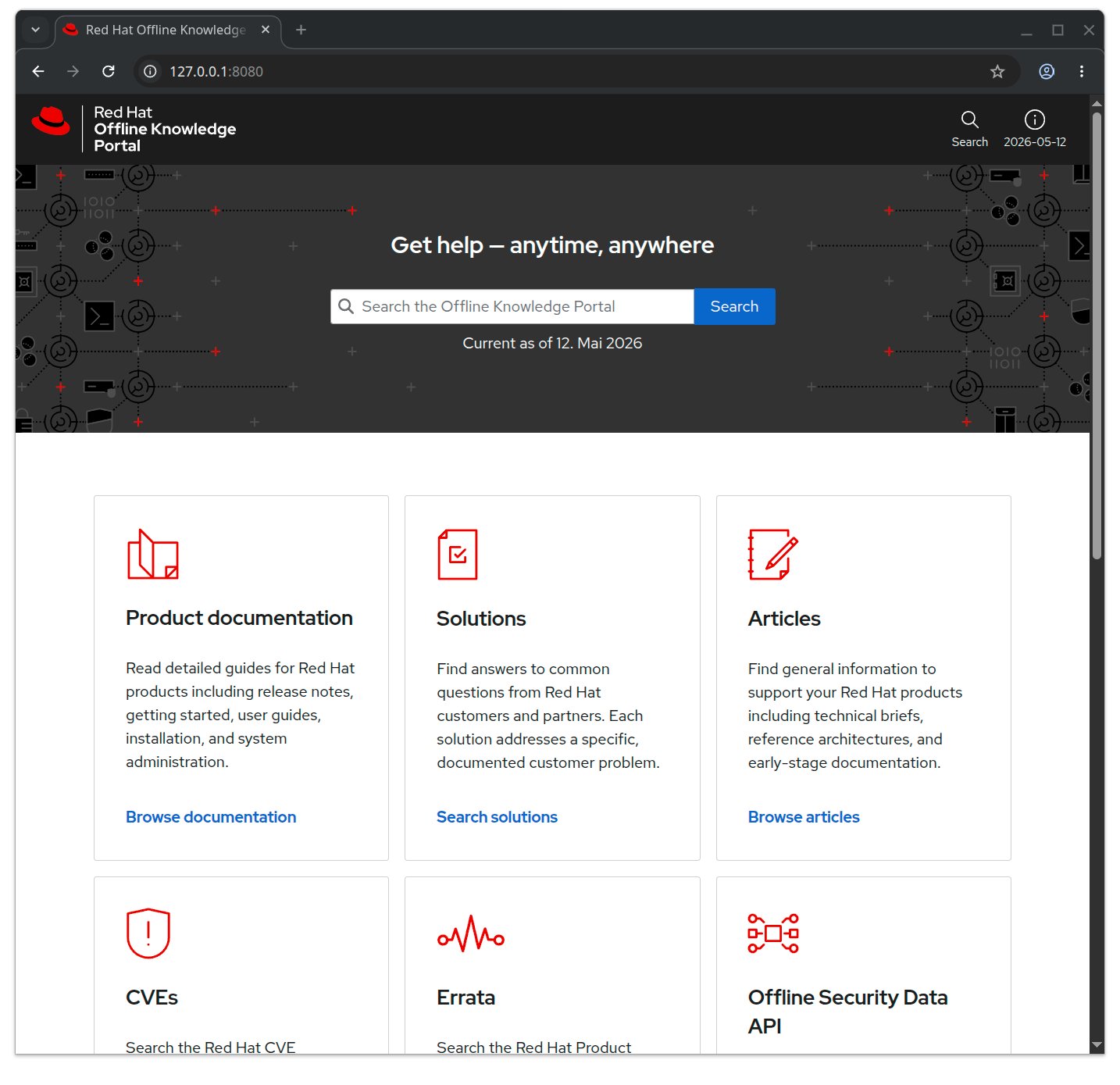
That paragraph is the mission statement of this post. The product is called the Red Hat Offline Knowledge Portal, RHOKP for short, and it is one of those quiet, slightly-too-modest pieces of software that a customer-facing engineer like me runs into, falls in love with, and then realises that most of the people who would benefit from it have never been told it is there. This post is my attempt to help with that.
What it actually is
RHOKP is a single container image, published on registry.redhat.io, that contains a self-hosted, locally-searchable copy of essentially the entire Red Hat customer-facing knowledge corpus. Concretely, what is inside the box:
- All product documentation. Every product, every supported version, the full HTML rendering you would otherwise read on
docs.redhat.com. Documentation is included for all versions of each product. - The full Knowledgebase. Every solution article and every troubleshooting writeup that lives behind
access.redhat.com/solutions. - Errata and the CVE database. The Red Hat Product Errata catalogue and the CVE database, locally searchable. Comprehensive information for the CVEs that affect Red Hat products, basic information for the rest.
- The Security Data API. A machine-consumable JSON feed of CVE and errata data, available locally, so security automation that normally hits
access.redhat.com/security/data/keeps working in an air-gap. - Product lifecycle pages and selected Customer Portal pages for the support resources that matter when you are offline.
- An Apache Solr 9.8 index in front of all of it, exposed through a clean web UI that looks and feels like a stripped-down, faster
access.redhat.com.
The whole thing is a single appliance image built on ubi9/httpd-24. As of today, the size on my laptop:
$ podman images | grep rhokp
registry.redhat.io/offline-knowledge-portal/rhokp-rhel9  latest  a7c87cff0ff7  40 hours ago  9.68 GB
9.68 GB for the sum of Red Hat’s public technical knowledge is, when you stop and think about it, an absurdly good deal. Red Hat publishes a new snapshot roughly weekly (the “40 hours ago” line above is typical), so once you have it pulled, a podman pull once a week keeps you within days of the live site.
A quick clarification on entitlement, because this catches almost everyone. Red Hat Satellite is not sold as a stand-alone subscription. It comes bundled into certain RHEL subscriptions (the Smart Management and equivalent add-ons), and it is that bundled entitlement that unlocks RHOKP. If your RHEL subscription includes Satellite, you have access to RHOKP at no additional cost, whether or not you have actually deployed a Satellite server.
Two things then gate access. The first is the image itself: you need to podman login registry.redhat.io against an account whose subscription includes the Satellite entitlement. The second is an access key, which is a small personal token you generate against your Red Hat account and pass into the container at launch as the ACCESS_KEY environment variable. Without the access key, the portal launches in a degraded mode: you get the Documentation tile and can browse the docs, but the search bar, the Solutions, and the Articles are unavailable. With the access key passed in, the full portal is unlocked. The key never leaves the host you generated it on, and it is what tells the container that the running instance is bound to an entitled human.
One important boundary up front: the RHOKP EULA explicitly forbids publishing or sharing the image, its content, or your access key. The product is licensed for your own internal use. Treat the image like any other entitled artefact, treat the key like a password, and keep both off the public internet. None of the screenshots or commands in this post leak either.
Why it matters
The obvious use case is air-gapped environments, and that is genuinely the headline feature: financial-services back offices, regulated industrial networks, defence, classified work, anywhere connecting a host to the public internet is a serious decision. For those operators, RHOKP is the difference between “we have the documentation” and “we have a stale PDF someone downloaded in 2023”. That alone justifies the product.
But the air-gap framing undersells it, because the same properties that make RHOKP useful behind a Faraday cage also make it useful in a long list of much more mundane scenarios.
Customer-site engagements. As a consultant I spend a non-trivial amount of my working life inside customer networks where outbound traffic is often restricted, sometimes via a corporate proxy that requires Kerberos against an AD I am not a member of, sometimes via a “we will whitelist that domain by Wednesday” workflow that takes until the following Friday. In those situations, the difference between a productive day and a frustrating one is whether the docs I need to consult are reachable from the bastion I have been given. With RHOKP running on my laptop and the laptop bridged into the customer network on whatever terms they allow, the docs come with me.
Trains and planes. This is half the reason I keep a copy on my work laptop. The ICE between Frankfurt and Hamburg has WiFi that is best described as aspirational, and I have spent more billable hours than I would like to admit reading product documentation between Mannheim and Köln. Local docs survive tunnels, dead spots, and the airline WiFi tier that lets you message but not stream. The docs are always there because they live two centimetres below my keyboard.
Bandwidth-constrained sites. Branch offices on satellite uplinks. Edge deployments. Anywhere the round trip to docs.redhat.com is fast enough to be usable but not fast enough to be pleasant, a local mirror with a real search index is qualitatively better than the live site.
Privacy. Every search you run on access.redhat.com is, reasonably, logged. That is how a vendor learns what their customers are confused about, and the data is used to improve products and prioritise documentation. It is also, depending on your operational context, information you may not want a third party to have. Running RHOKP means your search history for “how do I rotate the IdM CA in a disaster-recovery scenario” stays on your laptop. For some people that matters a lot.
Speed. Less philosophical, but worth saying out loud: local Solr against a 10 GB corpus on an NVMe drive is faster than access.redhat.com. Not faster in the sense of “the network is the bottleneck”, faster in the sense of “you stop noticing the search round trip exists”. After a few weeks of using it, going back to the live site feels slow in a way you cannot quite articulate until you measure it.
A word on the marketing gap
Before we get to how to run it, a brief observation about visibility.
RHOKP is, in my honest opinion, one of the best products Red Hat ships that almost nobody talks about. It made a short appearance at Red Hat Summit and surfaces occasionally in disconnected-environments documentation, but it does not show up in the places customers usually look. Most of the people I have shown it to had no idea it existed, and a non-trivial number of Red Hatters I have shown it to had not heard of it either, which surprised me. That is a shame, because the people who would benefit from this product are not a niche: they are anyone whose RHEL subscription includes Satellite, which is a large fraction of the enterprise customer base.
I want to be precise about my framing here. This post is not a critique of anyone’s work and not an argument that anyone has dropped the ball. I think this product deserves more attention than it currently receives, and I am going to spend some of my own writing’s reach on giving it that attention. There is a long and honourable tradition at Red Hat of employees publicly enthusing about parts of the portfolio that they personally find excellent, and this post is meant to sit in that tradition. If even a handful of customers end up running RHOKP because of it, the post will have done its small job.
Practical onboarding
The fastest way to be productive with RHOKP, on an x86_64 or aarch64 host with Podman installed, a Red Hat account on a RHEL subscription that includes Satellite, and a few gigabytes of free disk space (the docs ask for 50 GB minimum, 75 GB recommended, to leave headroom for the image plus the running container’s working state):
1. Log into the Red Hat registry.
podman login registry.redhat.io
Use your Customer Portal, Red Hat Developer, or registry service account credentials. On a Fedora workstation, the entitlement certificates Podman needs are auto-mounted via /usr/share/containers/mounts.conf, so the registry login is the only thing you have to do by hand.
2. Pull the image. Roughly 10 GB on the wire, so set this off and go make coffee.
podman pull registry.redhat.io/offline-knowledge-portal/rhokp-rhel9:latest
3. Generate your access key. This is the step that surprised me the first time I deployed RHOKP. Open the Red Hat Offline Knowledge Portal Access Key Generator page on the Customer Portal (the installation guide linked at the bottom of this post has the direct link), sign in, and click Generate key. Copy the resulting string somewhere safe. The key is stored against your Red Hat account, and the same page will display it again if you need it later. If it leaks, file a bug through the same page to unbind it and generate a new one.
4. Launch the container with the key. This is the canonical run command from the documentation, almost verbatim:
podman run --rm \
  -p 8080:8080 -p 8443:8443 \
  --env "ACCESS_KEY=<your_personal_access_key>" \
  -d registry.redhat.io/offline-knowledge-portal/rhokp-rhel9:latest
Give the container about thirty seconds to come up. Then point a browser at http://127.0.0.1:8080 or https://127.0.0.1:8443 (the HTTPS endpoint uses a self-signed certificate, so expect the usual browser warning the first time). You should land on the portal, with the date of the content extract shown in the upper-right corner of the page.
5. Optional, but worth knowing about: tune it with environment variables. The container reads a handful of additional env vars:
ONLINE_VIEW=trueadds an Online View button on every page that links to the liveaccess.redhat.comordocs.redhat.comequivalent. Useful on a laptop that is sometimes connected.SOLR_MEM=4graises the Solr JVM heap from the default1g. On a workstation with spare memory, this makes the search noticeably snappier.UNCLASSIFIED_BANNER=truepaints a greenUNCLASSIFIEDbar across the top of every page. This one is aimed at government and defence users who run RHOKP alongside classified material and want a constant visual reminder that this particular tab is the unclassified one. I have never personally needed it, but the fact that it ships in the product tells you something about the audience Red Hat is serving here.
You can also bring your own TLS certificate by mounting a directory with the expected layout at /opt/app-root/httpd-ssl/. The official guide has the exact directory structure; for a laptop deployment, the self-signed default is fine.
A few practical notes that the docs do not spell out:
Run it as a Quadlet if you want it always-on. The docs show --rm because they assume an ad-hoc launch, but for a workstation it makes more sense to convert that into a systemd --user Quadlet so the portal survives reboots and is there before you are. The unit is unremarkable: one Image=, the two PublishPort= lines, the Environment=ACCESS_KEY=... for your key, and Restart=always. Same shape as any other long-running container, with the access key kept in a systemd-creds blob or a mode-600 file rather than in shell history.
Schedule a weekly refresh. I have a tiny systemd timer that runs podman pull against the image once a week and restarts the unit if a new digest arrived. The image tag is latest, so the upstream weekly rebuild is what drives freshness. If you forget to refresh for a month, the world does not end, but you will start to notice gaps as newer errata land in the live site without yet being in your local copy.
Try the search first. The Solr front-end is the part that surprises people. It is fast, it understands Red Hat’s domain vocabulary (pacemaker, gpfs, osp, ipa), and the results are ranked sensibly. The first thing I tell people to do after they get the container running is to search for something they searched for on access.redhat.com last week and compare. The local result is usually as good and arrives faster.
For genuinely disconnected environments, save and ship the image. The documented air-gap flow is straightforward: on a connected host, after you have pulled the image, run
podman save --format oci-archive \
  -o rhokp.tar \
  registry.redhat.io/offline-knowledge-portal/rhokp-rhel9:latest
transfer the resulting rhokp.tar to the disconnected side using whatever your organisation’s approved method is (sneakernet, data diode, one-way file mover), and on the offline host run podman load -i rhokp.tar followed by the same podman run command shown above. The access key still has to be generated against a Red Hat account from a connected host first, then copied across with the image.
Combine it with your local Insights or rhc setup if you are fully disconnected. RHOKP gives you the knowledge corpus locally; the host-side automation tooling on Satellite gives you the operations that consume it. In a properly built air-gap the two form a closed loop: hosts report locally, knowledge is searched locally, recommendations apply locally, and the only thing that crosses the boundary is a periodic image refresh.
Closing thoughts
There is a quiet principle in this product that I think is worth preserving.
Documentation and operational knowledge are most useful when they do not require connectivity to be reached. The most important reference materials in any operational toolkit are the ones you can still get to when nothing else works: when the corporate VPN is down, when the customer’s egress firewall has a typo, when the train is in a tunnel, when the building you are sitting in does not allow outbound traffic on principle. A container that holds everything you might need to know about the platform you are operating, that you can pull once and reach forever, is a small but real act of operational resilience.
It is also, quietly, an act of trust in the customer. The implicit message of a product like RHOKP is “here is the knowledge, take it with you, you do not need to come back to us to retrieve it.” That is a posture I wish more vendors took. The default in this industry has drifted, slowly, towards services and portals and consoles and search bars that live on someone else’s infrastructure, and the cumulative effect on operational autonomy is greater than any single product makes it look. A 10 GB tarball you can carry around in your pocket is the opposite of that drift. It is not a revolutionary product. It is a small, deliberate vote in favour of the customer’s ability to function on their own.
That is the part I will keep paying for, even if every other vendor in my stack eventually decides documentation belongs in a chatbot behind a login wall. The RHOKP container in ~/.local/share/containers/ is, in its small way, infrastructure I own.
If your RHEL subscription includes Satellite, you have this already. Pull it, run it, and the next time you are on a train without WiFi and a customer pings you about a sosreport, you will be glad you did.
Further reading
- What is the Red Hat Offline Knowledge Portal - the official one-pager.
- Making Red Hat Expert Knowledge Available in Offline Environments - the full installation and air-gap deployment guide.
Comments
You can use your Mastodon or other ActivityPub account to comment on this article by replying to the associated post.
Search for the copied link on your Mastodon instance to reply.
Loading comments...