- Sat 31 October 2026
- 43 min read
- Linux
- #linux, #linux-foundationals, #fedora, #rhel, #boot, #uefi, #secure-boot, #shim, #mokutil, #grub, #dracut, #initramfs, #systemd, #systemd-analyze
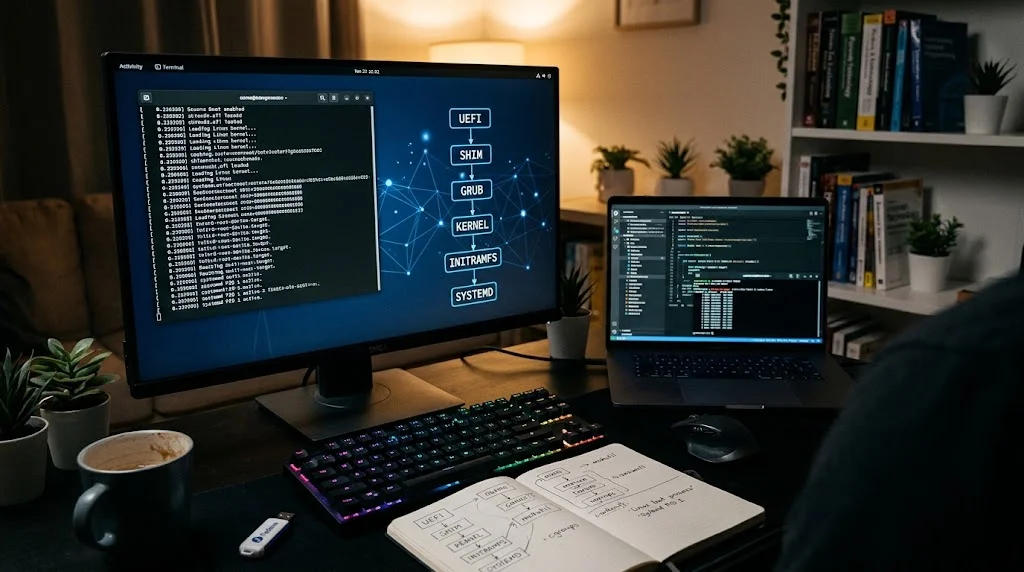
Every Linux system you have ever logged into went through the same sequence a few seconds before you got a prompt. Firmware found a bootloader, the bootloader found a kernel, the kernel found a root filesystem, and something called PID 1 turned all of that into a running system. Most of the time nobody looks at this chain. It only gets attention when it breaks, and then it gets a lot of attention at once.
This is the first article in the Linux Foundationals series, the Linux counterpart to FreeBSD Foundationals. The reference system throughout is Fedora (45 at the time of writing), but nearly everything here applies unchanged to RHEL 9 and 10, CentOS Stream and the other members of the family. The series follows the order in which a system actually comes alive: this part gets us from power-on to a running systemd, and the following parts build on top of that.
By the end of this article you’ll know what every file on the EFI System Partition is for, what Secure Boot actually verifies (and what it doesn’t), how to make your own kernel modules trusted with mokutil, where GRUB on Fedora gets its menu entries from, what happens inside the initramfs, how systemd decides what to start and in which order, and how to find out why your machine takes a minute to boot.
Table of Contents
- Table of Contents
- The Boot Chain at a Glance
- UEFI and the EFI System Partition
- Secure Boot, shim and the Chain of Trust
- MOK: Becoming a Machine Owner with mokutil
- GRUB2 and the Boot Loader Specification
- The Kernel and the Initramfs
- systemd: PID 1 Takes Over
- Measuring the Boot: systemd-analyze
- When the Boot Goes Wrong: A Recovery Cheat Sheet
- Common Pitfalls
- Conclusion
- References
The Boot Chain at a Glance
Linux on modern hardware boots in a chain where each stage verifies and starts the next one. On a Fedora machine with Secure Boot enabled, it looks like this:
┌────────────────────────┐
│     UEFI firmware      │  reads BootOrder from NVRAM,
│  (db / dbx / KEK / PK) │  verifies shim against db
└───────────┬────────────┘
            │ loads \EFI\fedora\shimx64.efi from the ESP
┌───────────┴────────────┐
│          shim          │  carries the Fedora/Red Hat cert,
│   (+ MokManager, MOK)  │  verifies GRUB and the kernel
└───────────┬────────────┘
            │ loads \EFI\fedora\grubx64.efi
┌───────────┴────────────┐
│         GRUB2          │  reads grub.cfg + BLS entries
│                        │  from /boot/loader/entries/
└───────────┬────────────┘
            │ loads vmlinuz + initramfs, passes cmdline
┌───────────┴────────────┐
│     Linux kernel       │  unpacks initramfs into a tmpfs,
│                        │  runs its /init (systemd)
└───────────┬────────────┘
            │
┌───────────┴────────────┐
│  initramfs (dracut)    │  finds and unlocks the root device,
│  systemd in the initrd │  mounts it at /sysroot
└───────────┬────────────┘
            │ switch_root /sysroot
┌───────────┴────────────┐
│   systemd (PID 1)      │  generators, units, targets,
│   on the real root     │  default.target
└───────────┬────────────┘
            │
      login / desktop
Compared to FreeBSD, where a single loader reads a text file and starts the kernel, the Linux chain has more moving parts. There are two bootloader-ish stages (shim and GRUB), there is a whole mini operating system in the initramfs, and PID 1 is a dependency-resolving service manager rather than a shell script runner. Each of these exists for a reason, so let’s walk through them in order.
UEFI and the EFI System Partition
When the machine powers on, the UEFI firmware initializes the hardware and then consults its boot entries, which live in NVRAM, not on any disk. You can read and modify them from a running system with efibootmgr:
efibootmgr -v
Here’s the output from my ThinkPad, shortened to the interesting entries. Recent versions of efibootmgr also print every device path as a hex dump below each entry, which I’ve removed:
BootCurrent: 0001
Timeout: 0 seconds
BootOrder: 0001,0000,001C,001D,001E,001F,0020,0021,0022,0023,0024,0002
Boot0000* Windows Boot Manager    HD(1,GPT,f640ee19-...,0x800,0x12c000)/\EFI\Microsoft\Boot\bootmgfw.efi...
Boot0001* Fedora                  HD(1,GPT,f640ee19-...,0x800,0x12c000)/\EFI\fedora\shimx64.efi
Boot0002* Linux-Firmware-Updater  HD(1,GPT,f640ee19-...,0x800,0x12c000)/\EFI\fedora\shimx64.efi5c00660077...
Boot0010  Setup                   FvFile(721c8b66-426c-4e86-8e99-3457c46ab0b9)
Boot0013  Lenovo Diagnostics      FvFile(3f7e615b-0d45-4f80-88dc-26b234958560)
Boot0016  ThinkShield secure wipe FvFile(3593a0d5-bd52-43a0-808e-cbff5ece2477)
Boot001E* NVMe0                   VenMsg(bc7838d2-...,001c199932d94c4eae9aa0b6e98eb8a400)
Boot0020* PXE BOOT                VenMsg(bc7838d2-...,78a84aaf2b2afc4ea79cf5cc8f3d3803)
Boot0021* LENOVO CLOUD            VenMsg(bc7838d2-...)/Uri(https://download.lenovo.com/pccbbs/cdeploy/efi/boot.efi)
...
BootCurrent: 0001 tells you which entry this boot came from, and BootOrder is the order the firmware tries them in. The asterisk marks an entry as active. There are three kinds of entries in this list:
HD(...)entries point at a file on a partition, identified by GPT partition number and partition GUID. These are the ones operating systems create. All three point at the same partition, partition 1 of the NVMe drive.FvFile(...)entries are applications built into the firmware volume itself: the setup screen, Lenovo’s diagnostics, the secure wipe tool. They don’t exist on any disk.VenMsg(...)entries are vendor-defined generic entries like “boot whatever is on NVMe0” or “boot from the network”.LENOVO CLOUDis a nice reminder that modern firmware can boot over HTTPS straight from the vendor’s servers to reinstall the machine.
Note that the Fedora entry points at shimx64.efi, not at GRUB. More on why in a moment. The Linux-Firmware-Updater entry, created by fwupd, points at shim too. The hex blob after the path is optional data that tells shim to load \fwupdx64.efi instead of GRUB. That’s how firmware capsule updates get applied on a Secure Boot machine: shim verifies and starts fwupd’s signed EFI helper, which hands the update to the firmware.
The HD(...) entries point at a FAT-formatted partition called the EFI System Partition (ESP). Fedora mounts it at /boot/efi. Here’s what mine contains:
sudo find /boot/efi -type f
/boot/efi/EFI/BOOT/BOOTIA32.EFI
/boot/efi/EFI/BOOT/BOOTX64.EFI        # fallback copy of shim
/boot/efi/EFI/BOOT/fbia32.efi
/boot/efi/EFI/BOOT/fbx64.efi          # fallback helper that recreates NVRAM entries
/boot/efi/EFI/fedora/grub.cfg         # a tiny stub, not the real config
/boot/efi/EFI/fedora/fwupdx64.efi     # fwupd's capsule update helper
/boot/efi/EFI/fedora/BOOTIA32.CSV
/boot/efi/EFI/fedora/BOOTX64.CSV      # tells fbx64.efi which entry to create
/boot/efi/EFI/fedora/gcdia32.efi
/boot/efi/EFI/fedora/gcdx64.efi       # GRUB build used for booting from optical media
/boot/efi/EFI/fedora/grubia32.efi
/boot/efi/EFI/fedora/grubx64.efi      # GRUB2, signed by Fedora
/boot/efi/EFI/fedora/mmia32.efi
/boot/efi/EFI/fedora/mmx64.efi        # MokManager, the MOK enrollment UI
/boot/efi/EFI/fedora/shim.efi         # copy of shimx64.efi under a generic name
/boot/efi/EFI/fedora/shimia32.efi
/boot/efi/EFI/fedora/shimx64.efi      # shim, signed by Microsoft
/boot/efi/System/Library/CoreServices/SystemVersion.plist
/boot/efi/mach_kernel
Every component exists twice: once as x64 and once as ia32. The ia32 variants are for machines with 64-bit CPUs but 32-bit UEFI firmware, a cost-saving combination found on some cheap tablets and early Intel Macs. Fedora installs them everywhere so the same ESP works on such hardware. On a ThinkPad they’re never used.
The two oddballs at the bottom, mach_kernel and System/Library/CoreServices/SystemVersion.plist, are for Apple hardware: Apple’s boot picker only offers a partition if it looks like a macOS volume, so Fedora leaves these placeholder files there. On anything that isn’t a Mac, they’re harmless leftovers.
The EFI/BOOT/ directory deserves a mention. BOOTX64.EFI is the path every UEFI firmware tries when it has no valid boot entries, for example after a firmware reset or when you move the disk to another machine. On Fedora that file is a copy of shim. When shim is started from this fallback path, it runs fbx64.efi, which reads BOOTX64.CSV in each vendor directory, recreates the matching NVRAM boot entry, and reboots into it. That’s why a Fedora disk usually “just boots” in a new machine.
On my laptop, which uses Fedora’s default layout with full-disk encryption, the disk looks like this:
/dev/nvme0n1p1   vfat         /boot/efi   ESP (shim, GRUB, MokManager)
/dev/nvme0n1p2   ext4         /boot       kernels, initramfs images, BLS entries, grub.cfg
/dev/nvme0n1p3   crypto_LUKS              LUKS2 container
  └─ luks-03ef...  btrfs      /, /home    subvolumes "root" and "home"
The separate, unencrypted ext4 /boot is there so GRUB never has to understand LUKS or the more exotic Btrfs features. Unlocking the encrypted root is the initramfs’s job, as we’ll see. The storage stack itself is the topic of part 2.
Secure Boot, shim and the Chain of Trust
UEFI Secure Boot is a simple idea: the firmware only executes EFI binaries signed by a key it trusts. The firmware stores its trust configuration in a few NVRAM variables:
| Variable | Purpose |
|---|---|
| PK (Platform Key) | The owner of the platform, usually the hardware vendor. Signs updates to KEK. |
| KEK (Key Exchange Keys) | Keys allowed to update db and dbx. Usually Microsoft and the vendor. |
| db | Certificates and hashes of binaries that are allowed to run. |
| dbx | The revocation list: binaries and certificates that must never run. |
Here’s the catch for Linux distributions: almost every PC ships with Microsoft’s certificates in db and nothing else. Getting Fedora’s key into the firmware of every laptop on the planet isn’t realistic. So the industry settled on shim: a small, deliberately boring first-stage loader that Microsoft signs with its third-party UEFI CA. Shim itself contains the distribution’s certificate (Fedora’s, or Red Hat’s on RHEL), and from that point on the distribution verifies its own binaries.
The chain of trust works like this:
- The firmware verifies
shimx64.efiagainst the Microsoft certificate in db. - Shim verifies
grubx64.efiagainst the Fedora certificate built into shim. - GRUB doesn’t verify the kernel itself. It asks shim to do it, through the verification interface shim provides to the binaries it starts. The kernel (
vmlinuz) is a signed PE binary, so the same check applies. - The kernel, once running with Secure Boot active, enforces signatures on kernel modules and switches itself into lockdown mode.
You can check whether Secure Boot is active, and what the kernel did about it, without rebooting:
mokutil --sb-state
# SecureBoot enabled

cat /sys/kernel/security/lockdown
# none [integrity] confidentiality

bootctl status 2>/dev/null | grep -A3 'Secure Boot'
The lockdown value in brackets is the active mode. integrity means the kernel refuses anything that could let userspace modify the running kernel: unsigned modules, /dev/mem writes, kexec of unsigned kernels, hibernation to an unencrypted swap and a handful of similar operations. That’s the actual security payoff of Secure Boot. Without lockdown, a signed boot chain would be pointless, because root could load arbitrary code into the kernel a second after boot.
It’s equally important to understand what Secure Boot does not do. It doesn’t verify the initramfs (it’s not a PE binary, and on Fedora it’s generated locally on each machine). It doesn’t verify GRUB’s configuration or the kernel command line. And it doesn’t protect anything once userspace is running. If you want to detect changes to those parts, you need measured boot with the TPM, which is what systemd-cryptenroll builds on in part 2. The other answer is Unified Kernel Images (UKIs), which bundle kernel, initramfs and command line into a single signed PE binary, so Secure Boot covers all three. Fedora already ships UKIs for virtual machines (kernel-uki-virt), and we’ll come back to them in part 8.
Revocation and SBAT
Secure Boot has a revocation problem. Every time a vulnerability in GRUB or shim is found, every vulnerable binary has to be blocked. Adding each one’s hash to dbx doesn’t scale, because dbx is a small NVRAM variable and there are thousands of signed GRUB builds out there.
The fix is SBAT (Secure Boot Advanced Targeting). Every shim and GRUB binary carries a .sbat section with a generation number per component. When a vulnerability is fixed, the generation number is bumped, and shim updates a variable called SbatLevel that sets the minimum generation it accepts. Old, vulnerable binaries are then rejected by generation number, without anyone touching dbx.
# Show the SBAT revocations currently applied on this machine
mokutil --list-sbat-revocations

# Show the SBAT metadata of the installed GRUB
objdump -j .sbat -s /boot/efi/EFI/fedora/grubx64.efi
The practical consequence: an old Fedora live USB stick may refuse to boot on a machine that already ran a newer shim. That isn’t a bug, it’s the revocation doing its job. Use a current image.
One more thing worth knowing about in 2026: the Microsoft certificates from 2011 that signed shim for over a decade are being replaced by a new generation of 2023 CAs. UEFI firmware doesn’t enforce certificate expiry dates, so shims that are already signed keep booting. Newer shims, however, are signed with the 2023 CA, and older machines only accept those once the new certificate has been added to db, either through a firmware update from the vendor or through fwupd. If an older box suddenly refuses to boot a fresh install image, check for firmware and db updates first.
MOK: Becoming a Machine Owner with mokutil
Shim adds a second trust store on top of the firmware’s: the Machine Owner Key (MOK) list. MOK lets you, the owner of the machine, trust additional keys without touching the firmware’s db. The typical reason is a kernel module that Fedora doesn’t sign: the NVIDIA driver built by akmods, a DKMS module like the one from the bcachefs on RHEL 10 article, or ZFS on RHEL.
Without an enrolled key, loading such a module fails like this:
modprobe: ERROR: could not insert 'nvidia': Key was rejected by service
That’s lockdown doing its job. Turning off Secure Boot “fixes” it, and also throws away the protection described above. The proper fix is enrolling the key that signed the module.
The enrollment workflow
Enrolling a key is deliberately a two-step process that requires physical presence at the console. From the running system, you only request the enrollment:
# Example: the key akmods uses to sign locally built modules on Fedora
sudo kmodgenca -a
sudo mokutil --import /etc/pki/akmods/certs/public_key.der
# input password:
# input password again:
The password is a one-time password you’ll need exactly once, on the next boot. It doesn’t have to be strong, but you need to remember it for about a minute.
mokutil --import doesn’t enroll anything. It writes a pending request into an NVRAM variable (MokNew). On the next reboot, shim sees the pending request and starts MokManager (mmx64.efi), the blue screen many people have seen once and never understood:
- “Press any key to perform MOK management” appears for about ten seconds. Press a key.
- Choose Enroll MOK, optionally View key to check the fingerprint, then Continue.
- Confirm with Yes and enter the password you set with
mokutil --import. - Choose Reboot.
If you miss the ten-second window, the system boots normally without the new key. Just run the import again and reboot.
This ceremony is the whole point. Malware running as root can create a pending request, but it can’t press keys at the physical console. The key only becomes trusted when a person at the machine confirms it.
After the reboot, verify that the key made it:
# List all enrolled MOKs
mokutil --list-enrolled | grep -E 'Subject:|Issuer:'

# Check a specific key
mokutil --test-key /etc/pki/akmods/certs/public_key.der
# /etc/pki/akmods/certs/public_key.der is already enrolled

# The kernel sees MOK keys in the .platform / .machine keyrings
sudo keyctl show %:.machine
Signing your own modules
If you build a module yourself instead of going through akmods or DKMS, you sign it with the kernel’s sign-file helper, using the private key that belongs to the certificate you enrolled:
/usr/src/kernels/$(uname -r)/scripts/sign-file sha256 \
    signing_key.priv signing_key.der mymodule.ko

modinfo mymodule.ko | grep -E 'signer|sig_key'
Keep the private key off the machine if you can, or at least readable only by root. Anyone who has it can sign code your kernel will trust.
Other useful mokutil operations
# Request removal of an enrolled key (again confirmed in MokManager)
sudo mokutil --delete key.der

# Show requests that are still pending for the next boot
mokutil --list-new

# Disable shim's own verification. Needs MokManager confirmation.
# Useful for debugging, almost never a good idea to leave on.
sudo mokutil --disable-validation
GRUB2 and the Boot Loader Specification
Shim hands over to grubx64.efi. If you’ve used GRUB on older distributions, you probably remember a giant generated grub.cfg with one menuentry block per kernel. Fedora (since 30) and RHEL (since 8) work differently, and this is where many people get confused.
Where the configuration actually lives
First, the grub.cfg on the ESP isn’t the real configuration. It’s a three-line stub:
sudo cat /boot/efi/EFI/fedora/grub.cfg
search --no-floppy --fs-uuid --set=dev 4a2b...e91c
set prefix=($dev)/grub2

export $prefix
configfile $prefix/grub.cfg
It finds the /boot partition by UUID and loads /boot/grub2/grub.cfg from there. Fedora introduced this stub in Fedora 34. Before that, BIOS systems used /boot/grub2/grub.cfg and UEFI systems used /boot/efi/EFI/fedora/grub.cfg, and running grub2-mkconfig -o with the wrong path was one of the most common ways to end up with a stale boot menu. Now there’s one path on both, and the real configuration no longer lives on an unjournaled FAT partition. That file is the generated main configuration, built by grub2-mkconfig from /etc/default/grub and the scripts in /etc/grub.d/. But even that file doesn’t contain your kernels. Instead it contains a single command near the end: blscfg.
BLS entries
blscfg reads the Boot Loader Specification (BLS) entries in /boot/loader/entries/, one small file per installed kernel:
ls /boot/loader/entries/
# 05be...0f06-0-rescue.conf
# 05be...0f06-7.2.11-300.fc45.x86_64.conf

sudo cat /boot/loader/entries/*-7.2.11-300.fc45.x86_64.conf
title Fedora Linux (7.2.11-300.fc45.x86_64) 45 (KDE Plasma Desktop Edition)
version 7.2.11-300.fc45.x86_64
linux /vmlinuz-7.2.11-300.fc45.x86_64
initrd /initramfs-7.2.11-300.fc45.x86_64.img $tuned_initrd
options root=UUID=5c88... ro rootflags=subvol=root rd.luks.uuid=luks-03ef... rhgb quiet $tuned_params
grub_users $grub_users
grub_arg --unrestricted
grub_class fedora
The prefix of each filename is the machine ID from /etc/machine-id. The design is simple and robust: installing a kernel drops one file, removing a kernel deletes one file, and there’s no need to regenerate a large config file every time. When a kernel RPM is installed, kernel-install runs its plugins in /usr/lib/kernel/install.d/, which build the initramfs (dracut) and write the BLS entry.
The options line is the kernel command line. root= and rootflags=subvol=root tell the initramfs what to mount, and rd.luks.uuid= tells it which LUKS container to unlock first. The two variables, $tuned_params and $tuned_initrd, belong to tuned: its bootloader plugin stores the kernel arguments of the active tuned profile in GRUB’s environment block (more on that below), and GRUB expands them at boot. That way switching a tuned profile can change kernel arguments without rewriting any BLS file. On my laptop both are empty, because the active profile doesn’t set any.
Managing entries with grubby
Since the kernel entries are individual files, you don’t run grub2-mkconfig to change kernel arguments on Fedora or RHEL. You use grubby:
sudo grubby --info=ALL
index=0
kernel="/boot/vmlinuz-7.2.11-300.fc45.x86_64"
args="ro rootflags=subvol=root rd.luks.uuid=luks-03ef... rhgb quiet $tuned_params"
root="UUID=5c88..."
initrd="/boot/initramfs-7.2.11-300.fc45.x86_64.img $tuned_initrd"
title="Fedora Linux (7.2.11-300.fc45.x86_64) 45 (KDE Plasma Desktop Edition)"
id="05be...0f06-7.2.11-300.fc45.x86_64"
index=1
kernel="/boot/vmlinuz-0-rescue-05be...0f06"
args="ro rootflags=subvol=root rd.luks.uuid=luks-03ef... rhgb quiet"
root="UUID=5c88..."
initrd="/boot/initramfs-0-rescue-05be...0f06.img"
title="Fedora Linux (0-rescue-05be...0f06) 41 (KDE Plasma)"
id="05be...0f06-0-rescue"
Look closely at the title of the second entry: 41. That’s the rescue entry, with a kernel and initramfs built without host-only optimization. It contains drivers for basically everything, and it’s what you boot when the regular initramfs is broken. But it’s only created when none exists yet, so on my machine it’s still the one from the original Fedora 41 install, two years and four releases ago. A two-year-old rescue kernel usually still boots, but if you want a current one, delete the old one and let kernel-install create a new one:
sudo rm /boot/*rescue* /boot/loader/entries/*rescue*
sudo kernel-install add "$(uname -r)" /lib/modules/"$(uname -r)"/vmlinuz
The rest of the everyday grubby commands:
# Which kernel boots by default?
sudo grubby --default-kernel

# Set a different default
sudo grubby --set-default /boot/vmlinuz-<version>

# Add or remove kernel arguments, for one kernel or all of them
sudo grubby --update-kernel=ALL --args="mitigations=auto,nosmt"
sudo grubby --update-kernel=ALL --remove-args="rhgb quiet"
--update-kernel=ALL rewrites every existing entry, and Fedora’s tooling carries the options forward to kernels you install later. When kernel-install writes the entry for a new kernel, it takes the command line from /etc/kernel/cmdline, or from /proc/cmdline if that file doesn’t exist. You only need grub2-mkconfig -o /boot/grub2/grub.cfg when you change things that are really GRUB settings, such as the timeout or the terminal, in /etc/default/grub.
Persistent state: grubenv
GRUB can’t write to most filesystems, but it can write to a single 1 KiB block file: /boot/grub2/grubenv. Fedora uses it for things like the saved default entry and the “boot was successful” flag:
sudo grub2-editenv list
# saved_entry=05be...0f06-7.2.11-300.fc45.x86_64
# menu_auto_hide=1
# tuned_params=
# tuned_initrd=
# boot_success=1
That menu_auto_hide variable is why you never see the GRUB menu on a single-OS Fedora machine. GRUB hides it if the previous boot was successful. Hold Shift (or press Esc or F8 repeatedly on some machines) during boot to get the menu, or turn the hiding off permanently:
sudo grub2-editenv - unset menu_auto_hide
On servers, I always do this. A boot menu that only shows up when you happen to press the right key at the right time on a remote console is not a recovery tool.
The Kernel and the Initramfs
GRUB loads two files into memory: the kernel (vmlinuz-*) and the initramfs (initramfs-*.img), and jumps into the kernel with the command line from the BLS entry. You can always see what the running kernel was booted with:
cat /proc/cmdline
The kernel initializes the hardware it has built-in drivers for, unpacks the initramfs into a tmpfs and runs its /init. Why the detour? Because the kernel has a chicken-and-egg problem. To mount the root filesystem it might need a storage driver that’s a module, a LUKS passphrase from the user, a TPM unlock, LVM or RAID assembly, a network connection for an iSCSI root, or a Btrfs subvolume. All of that requires userspace tools, and those tools live on the root filesystem the kernel is trying to reach. The initramfs is a small root filesystem with just enough tooling to find and open the real one.
dracut builds the initramfs
On Fedora and RHEL, the initramfs is built by dracut. It’s modular (each feature like crypt, lvm, btrfs or tpm2-tss is a dracut module), and by default on Fedora it runs in host-only mode: it includes only the drivers and modules this specific machine needs. That keeps the image small and the boot fast, and it’s also why the rescue entry exists.
Inspecting an initramfs is easy:
# Overview: dracut modules included, plus the full file list
lsinitrd /boot/initramfs-$(uname -r).img | less

# Only the dracut modules
lsinitrd -m /boot/initramfs-$(uname -r).img

# Print a single file from inside the image
lsinitrd -f /etc/crypttab /boot/initramfs-$(uname -r).img
Configuration goes into drop-ins in /etc/dracut.conf.d/. For example, to make sure TPM2 unlocking support is in the image:
# /etc/dracut.conf.d/tpm2.conf
# Note the spaces inside the quotes, dracut concatenates these strings
add_dracutmodules+=" tpm2-tss "
# Rebuild the initramfs for the running kernel
sudo dracut -f

# Or for every installed kernel
sudo dracut -f --regenerate-all
A rebuild is needed whenever something the early boot depends on changes: /etc/crypttab, dracut configuration, the keyboard layout for the LUKS prompt, or kernel modules that are needed before root is mounted. Package updates usually trigger it automatically, manual configuration changes don’t.
systemd inside the initramfs
Here’s a detail that surprises many people: on Fedora, the initramfs runs systemd as its init. It’s the same systemd binary, running a reduced set of units. Dracut generates the units for finding and mounting the root device, and the sequence goes roughly like this:
systemd (in initrd)
  ├── initrd-root-device.target   root block device has appeared
  │     (systemd-cryptsetup@... asks for the LUKS passphrase here)
  ├── sysroot.mount               real root mounted at /sysroot
  ├── initrd-root-fs.target
  ├── initrd-parse-etc.service    reads /sysroot/etc/fstab for /usr etc.
  ├── initrd-fs.target
  ├── initrd.target
  └── initrd-switch-root.target
        └── initrd-switch-root.service
              → systemctl switch-root /sysroot
switch_root is the final step. It deletes everything in the initramfs tmpfs to free the memory, moves /sysroot to /, and re-executes systemd from the real root filesystem. The new systemd keeps PID 1, picks up the state the initrd systemd serialized, and takes over. From this point on, the system is running from its real root.
Debugging the initramfs
When the boot hangs before the real root is mounted, these kernel command line options help. Press e on a GRUB menu entry, append them to the linux line, and boot with Ctrl+x:
| Option | Effect |
|---|---|
rd.break |
Drop to a shell inside the initramfs right before switch_root. The real root is mounted at /sysroot. |
rd.break=pre-mount |
Drop to a shell before the root filesystem is mounted. |
rd.debug |
Very verbose logging from the dracut scripts. |
rd.shell |
Offer a shell if the initramfs fails, instead of hanging. |
rd.luks=0, rd.lvm=0, … |
Disable specific dracut features for testing. |
Remove rhgb quiet from the line as well. rhgb starts the Plymouth graphical splash and quiet suppresses most kernel messages. Both are nice on a desktop and both hide exactly the messages you need when something goes wrong.
One catch: Fedora installations created without a root password have a locked root account, and the emergency shell then refuses to start with “Cannot open access to console, the root account is locked”. In that case, add systemd.setenv=SYSTEMD_SULOGIN_FORCE=1 to the kernel command line to get a shell anyway.
That this works at all is worth thinking about. Anyone with access to the console and the GRUB menu can get a root shell. If that’s not acceptable for a machine, the answer is a GRUB password (grub2-setpassword) and, more importantly, full-disk encryption, because a GRUB password does nothing against someone who boots a USB stick.
systemd: PID 1 Takes Over
Once systemd is running from the real root, it’s in charge for the rest of the system’s lifetime. Its job is to take a large set of declarative units and turn them into a running system, in parallel wherever possible.
Generators
Before systemd loads any units, it runs generators: small programs in /usr/lib/systemd/system-generators/ that translate other configuration formats into units at boot time. The most important one is systemd-fstab-generator, which turns every line in /etc/fstab into a .mount unit:
ls /run/systemd/generator/
# -.mount  boot.mount  boot-efi.mount  home.mount  local-fs.target.requires/ ...

systemctl cat home.mount
# /run/systemd/generator/home.mount
# Automatically generated by systemd-fstab-generator

[Unit]
Documentation=man:fstab(5) man:systemd-fstab-generator(8)
SourcePath=/etc/fstab
Before=local-fs.target
...

[Mount]
What=/dev/disk/by-uuid/5c88...
Where=/home
Type=btrfs
Options=subvol=home,compress=zstd:1
That explains a classic surprise. After you edit /etc/fstab, mount -a works fine, but systemd still uses the old mount units until you run systemctl daemon-reload, which reruns the generators.
Units and where they live
A unit is a small INI-style file describing one thing systemd manages: a .service, .mount, .socket, .timer, .path, .device, .target and a few more types. Units are loaded from three main directories, with a clear order of precedence:
| Path | Who owns it | Precedence |
|---|---|---|
/etc/systemd/system/ |
The administrator (you) | Highest |
/run/systemd/system/ |
Runtime, generated, gone after reboot | Middle |
/usr/lib/systemd/system/ |
Packages (RPM) | Lowest |
Never edit files in /usr/lib/systemd/system/ directly, the next package update overwrites them. Use a drop-in instead:
# Opens an editor for /etc/systemd/system/sshd.service.d/override.conf
sudo systemctl edit sshd.service

# Show the effective unit, including all drop-ins
systemctl cat sshd.service

# List every unit that is overridden or extended on this system
systemd-delta --type=extended,overridden
Dependencies are not ordering
If you take one thing from this section, take this one: in systemd, requirement dependencies and ordering dependencies are two independent concepts.
Wants=,Requires=,BindsTo=and friends say what gets started together.After=andBefore=say in which order things start, if they’re both being started anyway.
A unit with Requires=postgresql.service and no After= starts at the same time as PostgreSQL, not after it. A unit with After=postgresql.service and no Wants= or Requires= doesn’t pull PostgreSQL in at all. It only waits if something else happens to start PostgreSQL in the same transaction. Most of the “systemd started my service too early” complaints come down to having one of these without the other.
| Directive | Meaning |
|---|---|
Wants= |
Start these too. If they fail, I don’t care. The recommended default. |
Requires= |
Start these too. If they fail to start or get stopped, stop me as well. |
BindsTo= |
Like Requires=, but also stop me if the unit disappears (e.g. a device is unplugged). |
Requisite= |
These must already be active, don’t start them for me. |
PartOf= |
Stop and restart me whenever the other unit is stopped or restarted. |
Conflicts= |
Never run together with these. Starting one stops the other. |
After= / Before= |
Ordering only. No unit is pulled in by these. |
Here’s a real-world example: a service that needs the network to be fully up, not just “NetworkManager started”:
# /etc/systemd/system/offsite-sync.service
[Unit]
Description=Sync backups to the offsite target
Wants=network-online.target
After=network-online.target

[Service]
Type=oneshot
ExecStart=/usr/local/bin/offsite-sync

[Install]
WantedBy=multi-user.target
Wants= pulls network-online.target into the boot transaction, After= makes the service wait for it. Leave out either line and you have a race condition that only shows up on every tenth boot.
The [Install] section isn’t used at runtime at all. It only tells systemctl enable what to do: here, create a symlink in /etc/systemd/system/multi-user.target.wants/. “Enabling” a unit is nothing more than creating that symlink, which you can see with systemctl enable --now offsite-sync.service, as it prints the link it created.
You can inspect the dependencies of any unit. list-dependencies shows the tree of everything a unit pulls in, recursively. Here’s a heavily shortened version from my laptop:
systemctl list-dependencies multi-user.target
multi-user.target
● ├─auditd.service
● ├─chronyd.service
● ├─firewalld.service
○ ├─mcelog.service
● ├─NetworkManager.service
● ├─rsyslog.service
● ├─systemd-oomd.service
● ├─tuned.service
  ...
● ├─basic.target
● │ ├─sockets.target
● │ │ ├─dbus.socket
● │ │ ├─sshd-unix-local.socket
● │ │ ├─systemd-journald.socket
● │ │ ├─virtqemud.socket
  ...
● │ ├─sysinit.target
● │ │ ├─systemd-journald.service
● │ │ ├─systemd-resolved.service
● │ │ ├─systemd-udevd.service
  ...
● │ │ ├─cryptsetup.target
● │ │ │ └─systemd-cryptsetup@luks\x2d03ef....service
● │ │ ├─local-fs.target
● │ │ │ ├─-.mount
● │ │ │ ├─boot-efi.mount
● │ │ │ ├─boot.mount
● │ │ │ ├─home.mount
● │ │ │ └─tmp.mount
● │ │ ├─swap.target
● │ │ │ └─dev-zram0.swap
  ...
● │ └─timers.target
● │   ├─fstrim.timer
● │   ├─logrotate.timer
  ...
● ├─getty.target
● └─remote-fs.target
A filled circle means the unit is active, an empty one means it’s inactive, typically because it only runs under certain conditions (mcelog.service, for example, only starts on hardware that supports it). The tree already tells the story of this whole article: local-fs.target contains the mount units the fstab generator created, cryptsetup.target contains the unit that unlocked my LUKS container, and swap.target contains a swap device called zram0, which is not a disk at all. That’s a topic for part 2. The full output on a desktop is around 200 lines, and a striking number of them are .socket units. Most of systemd’s own services and all of libvirt’s daemons are socket-activated: systemd holds the socket and starts the service only when the first client connects.
The reverse direction answers “who pulls this in?”:
systemctl list-dependencies --reverse sshd.service
sshd.service
Nothing. On my laptop sshd.service isn’t enabled, so nothing wants it and it never starts at boot. That’s the quickest way to check whether a service is part of the boot transaction at all. For the raw properties of a unit, use systemctl show:
systemctl show -p Wants -p Requires -p After -p Before sshd.service
Requires=system.slice sysinit.target
Wants=sshd-keygen.target ssh-host-keys-migration.service
Before=shutdown.target
After=network.target ssh-host-keys-migration.service sysinit.target sshd-keygen.target basic.target system.slice systemd-journald.socket
The unit file itself only mentions a few of these. Requires=sysinit.target, After=basic.target, Before=shutdown.target and the slice come from default dependencies: unless a unit sets DefaultDependencies=no, systemd automatically orders every service after the basic system is up and before shutdown. Only early-boot units like systemd-journald.service opt out of that. Also note that sshd orders itself after network.target, not network-online.target. It doesn’t need a configured network, it just needs to be started after the network management service. That’s a deliberate choice, and an important one for boot time, as we’ll see in a moment.
Finally, check a unit file for mistakes before you rely on it:
systemd-analyze verify /etc/systemd/system/offsite-sync.service
Targets: synchronization points, not runlevels
A target is a unit that does nothing by itself. It groups other units and serves as a synchronization point during boot. The important ones, in the order they’re reached:
local-fs.target ─┐
swap.target ─────┼─► sysinit.target ─► basic.target ─► multi-user.target ─► graphical.target
cryptsetup.target┘        ▲                                   ▲
                          │                                   │
             early services (udev,              sshd, NetworkManager, crond,
             journald, tmpfiles, ...)           your services ...
| Target | Reached when |
|---|---|
sysinit.target |
Local filesystems are mounted, swap is on, udev and journald run. |
basic.target |
Sockets, timers, paths and early system services are set up. |
network-online.target |
The network is configured (only pulled in if something wants it). |
multi-user.target |
A full non-graphical system. Roughly the old runlevel 3. |
graphical.target |
multi-user.target plus the display manager. Roughly runlevel 5. |
rescue.target |
Single-user: basic system, root shell, no network or services. |
emergency.target |
The bare minimum: root mounted read-only, a root shell, nothing else. |
The target the system boots into is default.target, which is just a symlink:
systemctl get-default
# graphical.target

# Make a server boot to text mode
sudo systemctl set-default multi-user.target

# Switch the running system to a different target right now
sudo systemctl isolate multi-user.target
For a single boot, you can override the target on the kernel command line with systemd.unit=rescue.target or systemd.unit=emergency.target. The old runlevel numbers (1, 3, 5) still work there for compatibility, but the explicit names are clearer.
If you’re coming from the FreeBSD rc.d article: targets play roughly the role that PROVIDE: and REQUIRE: placeholders like NETWORKING and LOGIN play in rcorder. The big difference is that rcorder computes one linear order and runs it, while systemd computes a dependency graph and starts everything in parallel that isn’t ordered against something else.
Measuring the Boot: systemd-analyze
With the whole chain in your head, measuring it becomes meaningful. systemd-analyze is the tool, and its first output already splits the time by stage:
systemd-analyze
Startup finished in 21.097s (firmware) + 4.117s (loader) + 1.162s (kernel) + 27.754s (initrd) + 9.984s (userspace) = 1min 4.116s
graphical.target reached after 9.804s in userspace.
That’s my laptop, and at first glance, over a minute is embarrassing.
Every number maps onto a stage from the diagram at the top:
- firmware: POST, hardware init, the firmware’s own boot logo. Only the firmware setup can change this (fast boot, disabling unused controllers or network boot ROMs).
- loader: shim and GRUB, including the menu timeout. On Fedora, GRUB reports these timestamps to systemd through EFI variables, which is why they show up at all.
- kernel: from the kernel’s start until it executes the initramfs.
- initrd: everything in the initramfs, including the time you spent typing your LUKS passphrase. Keep that in mind before optimizing the wrong thing.
- userspace: from switch_root to
default.target.
Now read my numbers with that list in mind. 21 seconds of firmware is the ThinkPad doing its own thing before any Fedora code runs: memory training, the TPM, the security chip, the network boot ROMs and Lenovo’s boot logo. 27.8 seconds of initrd is almost entirely me: the initramfs asks for the LUKS passphrase and then waits patiently while I type it. The parts that Linux actually spends working, kernel and userspace, add up to about 11 seconds. A minute-long boot on paper, and roughly ten seconds of it that are worth optimizing.
That’s the first lesson of boot measurement: before optimizing anything, find out which stage the time is spent in. Userspace is usually the part you have the most influence over, and it’s what the rest of this section is about.
blame: who took long
systemd-analyze blame | head
28.611s sys-module-fuse.device
28.611s sys-devices-pci0000:00-0000:00:08.3-0000:c6:00.3-usb5-5\x2d1.device
28.611s dev-bus-usb-005-002.device
28.574s sys-devices-pci0000:00-...-usb5-5\x2d1-5\x2d1:1.1-0003:1050:0407.0003-hidraw-hidraw2.device
28.574s dev-hidraw2.device
28.544s sys-devices-platform-STM0176:00-tpm-tpm0.device
28.544s dev-tpm0.device
28.471s sys-devices-pci0000:00-...-usb1-1\x2d1-1\x2d1:1.1-0003:20A0:42B2.0001-hidraw-hidraw0.device
28.471s dev-hidraw0.device
28.462s sys-devices-pci0000:00-0000:00:08.1-0000:c4:00.3-usb1-1\x2d1.device
blame lists every unit by how long it took to start, and this is the real output from my laptop. Taken at face value, it says my boot is held up by almost half a minute of USB devices. In reality the whole userspace part took less than ten seconds, as the next section shows.
What’s going on here is that .device units don’t start in any meaningful sense. They’re how systemd represents a device that udev reported, and the time blame shows for them doesn’t measure anything that delayed the boot. Compare the numbers with the summary above: about 28.5 seconds is suspiciously close to the 27.8 seconds spent in the initramfs, plus a bit. These devices were already found by udev in the initramfs, and their “activation” stretched across the whole time the boot sat waiting for my LUKS passphrase. Here they are my TPM (STM0176, an STMicroelectronics chip), a YubiKey (USB vendor ID 1050 is Yubico) and a Nitrokey (20A0). Nothing waited for any of them. Filter them out to see the services:
systemd-analyze blame | grep -v '\.device$' | head
Even then, blame is misleading by design. Units start in parallel, so a unit that took six seconds may not have delayed the boot at all if nothing waited for it. A timer-started job like dnf-makecache.service can top the list while being completely irrelevant for how fast you reach the login screen.
critical-chain: who actually held up the boot
The question you actually want answered is “what was on the critical path?”. That’s critical-chain:
systemd-analyze critical-chain
graphical.target @9.804s
└─multi-user.target @9.804s
  └─rsyslog.service @9.681s +123ms
    └─network-online.target @9.678s
      └─NetworkManager-wait-online.service @3.625s +6.052s
        └─NetworkManager.service @3.359s +251ms
          └─network-pre.target @3.358s
            └─firewalld.service @3.357s
              └─basic.target @3.345s
                └─dbus-broker.service @3.318s +26ms
                  └─dbus.socket @3.308s +236us
                    └─sysinit.target @3.304s
                      └─systemd-resolved.service @1.280s +2.023s
                        └─systemd-sysctl.service @1.205s +41ms
                          └─systemd-modules-load.service @1.191s +11ms
                            └─systemd-journald.socket
                              └─system.slice
                                └─-.slice
The time after @ is when the unit became active, the time after + is how long it took to start. Read it from the bottom up and look for the big + values. On my laptop, two of them stand out:
systemd-resolved.servicetakes about 2 seconds beforesysinit.targetcan be reached.NetworkManager-wait-online.servicetakes about 6 seconds to decide that the network is up. That’s more than half of the entire userspace boot.
And here’s the interesting part: what’s waiting for network-online.target? Not sshd, as we saw, and not NetworkManager itself. It’s rsyslog. Its unit file orders it after network-online.target, presumably so that forwarding logs to a remote syslog server works from the first message on. multi-user.target waits for rsyslog, graphical.target waits for multi-user.target, and so a classic syslog daemon that only writes to local files on a laptop delays the whole boot by six seconds.
Note that critical-chain follows After= ordering, not Wants= dependencies. It shows what waited for what, which is exactly what matters for boot time. You can also pass a unit to look at its specific chain: systemd-analyze critical-chain sshd.service.
plot and dot: the whole picture
# An SVG timeline of every unit, with start and active times
systemd-analyze plot > boot.svg

# A dependency graph, filtered to what leads to graphical.target
systemd-analyze dot --to-pattern='graphical.target' --require | dot -Tsvg > deps.svg
The plot is the best way to see parallelism, or the lack of it. Open the SVG in a browser and look for long bars that everything else lines up behind.
Typical fixes
Most slow boots come down to a handful of usual suspects:
Something waits for network-online.target that doesn’t need to. The fix is usually in the waiting service, not in NetworkManager-wait-online.service. Disabling the wait-online service makes the boot faster and breaks NFS mounts, remote log shipping and anything else that legitimately needs the network. In my case, the question is whether rsyslog needs to run at all. journald already stores every log message, and on a laptop that doesn’t forward logs anywhere, rsyslog only writes a second copy to /var/log/messages. If nothing reads those files, sudo systemctl disable --now rsyslog.service removes it from the critical chain. On a server that forwards logs to a central syslog host, the six seconds are the price of not losing the first log messages, and that’s a fair price. For your own units, like the offsite-sync.service example from earlier, the fix is often to trigger them with a .timer instead of WantedBy=multi-user.target, so nothing waits for them at all.
A oneshot service in the boot path that doesn’t need to be there. Ask whether a unit really needs to be WantedBy=multi-user.target, or whether a timer, a socket or a path unit would do the job without blocking anything.
A stale entry in /etc/fstab or /etc/crypttab. A disk that no longer exists gives you a 90-second wait for the .device unit. Use nofail for disks that are optional, and remove entries for disks that are gone.
systemd-udev-settle.service. It’s a legacy “wait until udev has processed everything” unit. If it shows up, something still pulls it in (systemctl list-dependencies --reverse systemd-udev-settle.service tells you what), and that’s usually worth a bug report.
Firmware and loader time. Not systemd’s fault. Shorten the GRUB timeout in /etc/default/grub and regenerate grub.cfg, and look at the firmware’s fast boot options.
The journal: what happened during boot
Timing tells you what was slow, the journal tells you why. A few commands I use constantly:
# All boots the journal knows about
journalctl --list-boots

# Errors from the current boot
journalctl -b -p err

# Everything from the previous boot, e.g. after a crash
journalctl -b -1

# The current boot with timestamps relative to boot start
journalctl -b -o short-monotonic

# Units that failed
systemctl --failed

# What is systemd still waiting for? (useful during a hanging boot)
systemctl list-jobs
systemctl list-jobs needs a shell during the hang, of course. For that, add systemd.debug_shell to the kernel command line: it starts a root shell on tty9 (Ctrl+Alt+F9) early in the boot, without a password. It’s a fantastic debugging tool, and for the same reason never something to leave enabled.
When the Boot Goes Wrong: A Recovery Cheat Sheet
| Symptom | First thing to try |
|---|---|
| GRUB menu doesn’t show up | Hold Shift or press Esc during boot, then grub2-editenv - unset menu_auto_hide |
| New kernel doesn’t boot | Choose the previous kernel in GRUB, then grubby --set-default until fixed |
| Hang before root is mounted | Remove rhgb quiet, add rd.shell, or boot the 0-rescue entry |
| Root is mounted, but boot hangs | systemd.debug_shell, then systemctl list-jobs on tty9 |
| A service breaks the boot | systemd.unit=rescue.target or systemd.unit=emergency.target |
| “Key was rejected by service” | Module isn’t signed with an enrolled key: mokutil --import |
| Root account locked in emergency mode | Add systemd.setenv=SYSTEMD_SULOGIN_FORCE=1 |
| Fedora disk doesn’t boot in a new machine | Check that the firmware’s fallback boot path is enabled, EFI/BOOT/BOOTX64.EFI handles the rest |
| Secure Boot rejects an old install medium | Expected after SBAT updates, use a current image |
Common Pitfalls
Running grub2-mkconfig to change kernel arguments. On a BLS system, kernel arguments live in the entries under /boot/loader/entries/. Use grubby --update-kernel=ALL --args=.... Editing GRUB_CMDLINE_LINUX alone and regenerating grub.cfg won’t change the existing entries the way you expect.
Disabling Secure Boot to load a module. It works, and it switches off kernel lockdown at the same time. Enrolling a MOK takes two minutes and one reboot. Do that instead.
Editing /etc/fstab without daemon-reload. The fstab generator only runs at boot and on systemctl daemon-reload. Until then, systemd keeps using the old mount units, and you’ll find out at the next reboot, which is the worst possible time.
Using After= without Wants= (or the other way around). Ordering and requirement are separate. If you need another unit to be running before yours starts, you need both.
Optimizing for systemd-analyze blame. The slowest unit in blame is often irrelevant. Look at critical-chain first, then optimize only what’s actually on it.
Forgetting to rebuild the initramfs. Changes to /etc/crypttab, dracut configuration or early-boot modules only take effect after dracut -f. The kernel will happily boot with an initramfs that has none of your changes.
Losing the rescue path on remote servers. Hidden GRUB menus, a locked root account and no out-of-band console add up to a machine you can’t recover remotely. Set up the console access and test it before you need it, exactly like on FreeBSD.
Conclusion
The Linux boot chain looks complicated from the outside, but each stage exists for a clear reason. UEFI finds an EFI binary on the ESP. Shim bridges the gap between Microsoft’s certificates in the firmware and the distribution’s own key, and MOK lets you add your own. GRUB reads one small BLS file per kernel and asks shim to verify the kernel. The initramfs, built by dracut and running its own systemd, solves the problem of reaching a root filesystem that needs userspace tools to open. And after switch_root, systemd turns a graph of declarative units into a running system, in parallel wherever the ordering allows it.
The mental model to keep: verification flows from firmware to shim to GRUB to kernel to modules, but stops at the initramfs and the command line. Configuration for kernels lives in BLS entries and is managed with grubby, not by regenerating grub.cfg. And in systemd, requirement and ordering are separate questions, which is also the key to reading systemd-analyze critical-chain correctly.
The next article in this series picks up where this one ends: systemd has a root filesystem, so now we’ll look at what that root filesystem actually is. Part 2 covers the storage and memory stack on Fedora: the block layer, device mapper and LUKS2 with TPM2 auto-unlock via systemd-cryptenroll, Btrfs subvolumes and compression, and why Fedora replaced disk swap with zram and lets systemd-oomd step in before the kernel’s OOM killer does.
References
- shim on GitHub - including the SBAT documentation
- Fedora Docs - Working with the GRUB 2 Boot Loader
- UAPI Group - Boot Loader Specification
- RHEL 10 - Managing, monitoring, and updating the kernel - covers grubby, Secure Boot and module signing
- dracut.cmdline(7) - all the
rd.*options - bootup(7) - the systemd boot sequence, including the initrd part
- systemd.unit(5) - dependencies and ordering
- systemd-analyze(1)
Comments
You can use your Mastodon or other ActivityPub account to comment on this article by replying to the associated post.
Search for the copied link on your Mastodon instance to reply.
Loading comments...