- Sat 24 January 2026
- FreeBSD
- #freebsd, #jails, #self-hosting, #privacy
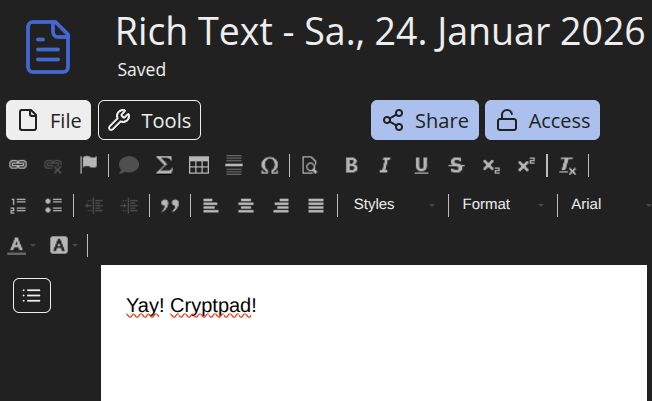
CryptPad is an end-to-end encrypted collaboration suite. Think Google Docs, but where the server never sees your content. It’s a compelling option for privacy-conscious teams or anyone wanting to own their data. This post documents installing CryptPad in a FreeBSD VNET jail, served behind a Caddy reverse proxy, with network isolation enforced by PF.
This guide assumes familiarity with FreeBSD jails, PF, and BastilleBSD. It focuses on architecture and pitfalls rather than introductory jail setup.
Why CryptPad?
Most collaborative document platforms require trusting the provider with your data. CryptPad takes a different approach: all encryption happens client-side in the browser. The server stores only encrypted blobs and has no way to decrypt your documents, even if compelled to.
Self-hosting adds another layer: your data never leaves infrastructure you control. Combined with FreeBSD’s VNET jails for network isolation, this creates a robust privacy-respecting setup. Unlike tools such as Nextcloud or OnlyOffice, CryptPad’s threat model assumes the server itself is untrusted.
Architecture Overview
[ Internet ]
     |
     v
+-----------------------+
|    PF Firewall        |
|    NAT + RDR          |
+-----------+-----------+
            |
     +------+------+
     | bastille0   |  (bridge interface)
     | 10.254.254.1|
     +------+------+
            |
   +--------+--------+
   |                 |
   v                 v
+-------+      +-----------+
| Caddy |      | CryptPad  |
| Jail  |      |   Jail    |
| .10   |----->|   .36     |
+-------+      +-----------+
The key security principle: jails live on a private RFC1918 network (10.254.254.0/24) that is completely invisible to the internet. PF on the host performs NAT for outbound traffic and only redirects specific ports to specific jails. The CryptPad jail has no direct internet exposure - all traffic flows through the Caddy jail.
VNET Jail Networking
This setup uses VNET jails, which give each jail its own complete network stack including interfaces, routing tables, and firewall state. Unlike traditional IP-based jails that share the host’s network stack, VNET jails behave like independent networked machines.
The jails attach to a bridge interface on the host:
# Host /etc/rc.conf (relevant networking section)
cloned_interfaces="bridge0"
ifconfig_bridge0_name="bastille0"
ifconfig_bastille0="inet 10.254.254.1/24"
gateway_enable="YES"
The host acts as the default gateway for all jails. Each jail gets an IP from the 10.254.254.0/24 range:
$ bastille list
 JID  Name           State  IP Address
 2    caddy          Up     10.254.254.10
 10   cryptpad       Up     10.254.254.36
 ...
Creating the CryptPad jail with Bastille:
bastille create -B cryptpad 15.0-RELEASE 10.254.254.36 bastille0
The -B flag creates a VNET jail attached to the bastille0 bridge.
PF Firewall: NAT and Selective Exposure
The critical security layer is PF on the host. It provides:
- NAT for outbound traffic - jails can reach the internet (for package updates, etc.) but appear to come from the host’s public IP
- Port redirection - only ports 80/443 are exposed, and only to the Caddy jail
- Default deny - everything else is silently dropped
# /etc/pf.conf
ext_if = "vtnet0"
jail_net = "10.254.254.0/24"
frontend_v4 = "10.254.254.10"  # Caddy jail

table <jails_v4> { $jail_net }

set skip on lo0
set block-policy drop

# NAT: Jails -> Internet
nat on $ext_if inet from <jails_v4> to any -> ($ext_if)

# RDR: Internet -> Caddy jail only
rdr pass on $ext_if inet proto tcp to ($ext_if) port {80,443} -> $frontend_v4

# Default deny
block drop in log all
block drop out log all

# Allow established connections out
pass out quick all keep state

# Anti-spoofing
antispoof quick for { $ext_if, bastille0 }

# ICMP
pass in inet proto icmp icmp-type { echoreq, unreach }

# Jail egress (but not to other jails)
pass in quick on bastille0 from <jails_v4> to ! 10.254.254.0/24 keep state
Notice what’s not here: there’s no rule allowing direct internet access to the CryptPad jail. Traffic to ports 80/443 is redirected to 10.254.254.10 (Caddy), which then proxies to CryptPad internally over the bridge network. The CryptPad jail is completely hidden from the internet.
This is defense in depth: even if CryptPad had a vulnerability, an attacker couldn’t establish a reverse shell or exfiltrate data directly - they’d have to go through Caddy first.
CryptPad Installation
Two domains are required: one for the main application and one for the sandbox (CryptPad’s XSS protection mechanism). Both domains resolve to the host’s public IP, where PF redirects them to Caddy.
Prerequisites
Inside the CryptPad jail, install the necessary packages. CryptPad requires Node.js 20+ and build tools for native modules:
pkg install git node24 npm-node24 gmake python3 bash
The full package list for a working installation looks like this:
brotli-1.2.0,1          git-tiny-2.52.0         node24-24.12.0
c-ares-1.34.6           gmake-4.4.1             npm-node24-11.7.0
corepack-0.34.5         icu-76.1,1              python311-3.11.14
libuv-1.51.0            llhttp-9.3.0            simdjson-4.2.4
User and Installation
Never run CryptPad as root. Create a dedicated user:
pw useradd -n cryptpad -c "CryptPad User" -d /usr/local/cryptpad -s /bin/sh -m
su - cryptpad
git clone https://github.com/cryptpad/cryptpad.git .
The Critical Installation Step
This is where many installations fail. Running only npm install will leave you with a site that hangs on “Loading…” and throws 404 errors for require.js. CryptPad needs three distinct build steps:
# 1. Install backend dependencies
npm install

# 2. Install frontend components (bower, bootstrap, require.js, etc.)
npm run install:components

# 3. Build static assets (pages, CSS, etc.)
npm run build
The second step is easily missed because it’s not obvious from the documentation. If you skip it, the application will appear to start but the browser will never finish loading.
Configuration
Copy the example configuration and edit it:
cp config/config.example.js config/config.js
The critical settings in config/config.js:
module.exports = {
    // Listen on the jail's interface (not localhost)
    httpAddress: '10.254.254.36',

    // Main domain - where users access CryptPad
    httpUnsafeOrigin: 'https://pad.example.com',

    // Sandbox domain - MUST be different from main domain
    httpSafeOrigin: 'https://sandbox.example.com',

    // Admin keys (add after registering your admin account)
    adminKeys: [
        // "[your-public-key-here]"
    ],
};
Understanding the Two Domains
CryptPad’s security model relies on browser same-origin policy. The main domain handles authentication and cryptographic operations. The sandbox domain loads the UI in an iframe with a different origin, preventing XSS attacks from accessing your encryption keys.
Both domains point to the same CryptPad instance, the application routes requests appropriately based on the Host header. This is why correctly passing the Host header through the reverse proxy is essential.
FreeBSD Service Setup
CryptPad includes an rc.d script template. Copy it and enable the service:
cp /usr/local/cryptpad/docs/rc.d-cryptpad /usr/local/etc/rc.d/cryptpad
chmod +x /usr/local/etc/rc.d/cryptpad
sysrc cryptpad_enable="YES"
Here’s the actual rc.d script adapted for FreeBSD:
#!/bin/sh
# PROVIDE: cryptpad
# REQUIRE: DAEMON
# KEYWORD: shutdown

. /etc/rc.subr

name="cryptpad"
start_cmd="start"
stop_cmd="stop"
rcvar=cryptpad_enable

pidfile="/var/run/cryptpad/${name}.pid"
desc="CryptPad Service"

load_rc_config ${name}

start() {
    /bin/mkdir -p /var/run/cryptpad
    /usr/sbin/chown cryptpad:cryptpad /var/run/cryptpad

    /usr/bin/su cryptpad -c "export PATH=/sbin:/bin:/usr/sbin:/usr/bin:/usr/local/sbin:/usr/local/bin:~/bin && \
        cd /usr/local/cryptpad && \
        /usr/sbin/daemon -T ${name} \
            -P /var/run/cryptpad/${name}_supervisor.pid \
            -p /var/run/cryptpad/${name}.pid \
            -f -S -r /usr/local/bin/node server"
}

stop() {
    /bin/kill -9 `cat /var/run/cryptpad/${name}_supervisor.pid`
    /bin/kill -15 `cat /var/run/cryptpad/${name}.pid`
}

run_rc_command "$1"
Start the service:
service cryptpad start
A running CryptPad instance spawns multiple worker processes:
USER       PID %CPU %MEM    VSZ   RSS TT  STAT COMMAND
cryptpad 89849  0.0  0.0  13068  2508  -  IsJ  daemon: /usr/local/bin/node[89850]
cryptpad 89850  0.0  1.1 839584 87964  -  SJ   /usr/local/bin/node server
cryptpad 89851  0.0  1.1 840864 88624  -  SJ   /usr/local/bin/node ./lib/http-worker.js
cryptpad 89852  0.0  1.1 842400 88000  -  SJ   /usr/local/bin/node ./lib/http-worker.js
...
cryptpad 89857  0.0  1.0 834088 79448  -  SJ   /usr/local/bin/node lib/workers/db-worker
Caddy Reverse Proxy
Caddy runs in its own jail (10.254.254.10) and is the only jail exposed to the internet via PF’s port redirection. Configure it to proxy both CryptPad domains to the application jail. The Host header passthrough is crucial! Without it, CryptPad’s WebSocket security checks will fail:
pad.example.com {
    reverse_proxy 10.254.254.36:3000 {
        header_up Host {host}
        header_up X-Real-IP {remote}
    }

    header {
        Strict-Transport-Security "max-age=31536000; includeSubdomains"
        X-XSS-Protection "1; mode=block"
        X-Content-Type-Options "nosniff"
        X-Frame-Options "SAMEORIGIN"
        Referrer-Policy "same-origin"
    }
}

sandbox.example.com {
    reverse_proxy 10.254.254.36:3000 {
        header_up Host {host}
        header_up X-Real-IP {remote}
    }

    header {
        Strict-Transport-Security "max-age=31536000; includeSubdomains"
    }
}
Note that both domains proxy to the same backend (10.254.254.36:3000). Caddy handles TLS automatically via Let’s Encrypt. Since the jails communicate over the private bridge network, this internal traffic doesn’t need encryption.
Troubleshooting
Site Hangs on “Loading…”
This is almost always caused by missing frontend components. Check if require.js exists:
ls -l /usr/local/cryptpad/www/components/requirejs/require.js
If missing, you skipped npm run install:components. Fix it:
su - cryptpad
cd /usr/local/cryptpad
npm run install:components
npm run build
exit
service cryptpad restart
WebSocket Connection Failures
If you see WebSocket errors in the browser console, verify:
- The Host header is being passed through your reverse proxy
- Both domains are correctly configured in
config.js - The
httpAddressin config.js matches the jail’s IP
White Screen
Usually a sandbox domain misconfiguration. The main and sandbox domains must be different but both must resolve to your CryptPad instance. Check browser console for CORS or CSP errors.
Adding an Admin Account
After the first successful login:
- Register a normal account through the web interface
- Go to Settings and find your public signing key
- Add it to the
adminKeysarray inconfig/config.js - Restart CryptPad
adminKeys: [
    "[cryptpad-admin@pad.example.com/YZgXQxKR0Rcb6r6CmxHPdAGLVludrAF2lEnkbx1vVOo=]",
],
The admin panel then becomes available at https://pad.example.com/admin/.
Conclusion
CryptPad in a FreeBSD VNET jail provides a solid foundation for privacy-respecting collaboration. The layered security model gives defense in depth:
- VNET jails provide complete network stack isolation
- PF NAT hides all jails behind RFC1918 addresses
- Selective port redirection exposes only the Caddy frontend
- End-to-end encryption means even you as administrator cannot read documents
The main gotcha is the three-step build process - if your installation hangs on loading, that’s almost certainly the culprit. Get that right, ensure both domains are configured, and you’ll have a working instance that’s invisible to port scanners and attackers probing for Node.js vulnerabilities.