- Wed 01 July 2026
- 15 min read
- FreeBSD
- #freebsd, #upgrade, #freebsd-update, #pkgbase, #bectl, #boot-environments, #zfs
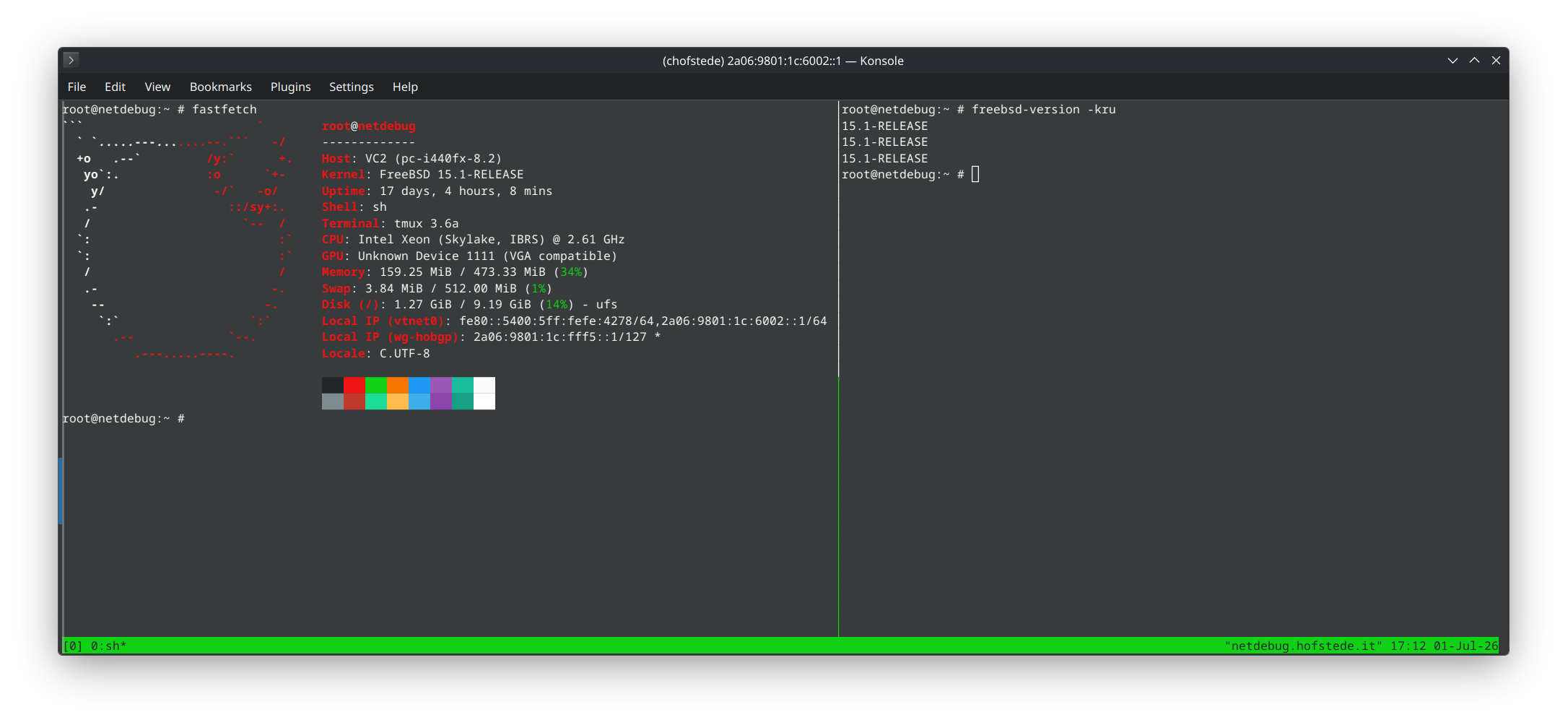
FreeBSD 15.1-RELEASE was announced on June 16, 2026. If you’re running 15.0-RELEASE, you have a well-defined upgrade path - but the exact steps depend on how your base system is managed. The first question isn’t “which tool should I use?” but “how is my base system installed?”
This article follows the official 15.1-RELEASE upgrading instructions, explains the pre-upgrade detection, walks through both supported procedures (distribution-set and packaged-base), and covers the boot-loader update step included in the official procedure.
Update (2026-07-02): An earlier version put the boot-loader update after the first reboot in the freebsd-update path and did not mention FreeBSD-ports-kmods there. The sequence below now updates the boot loader before the first attempt to boot 15.1 and includes the ports-kmods repository step for systems using out-of-tree kernel modules. Thanks to Graham Perrin (@grahamperrin@bsd.cafe) for the correction.
Support timeline: 15.1-RELEASE is supported until March 31, 2027. 15.0-RELEASE reaches EOL on September 30, 2026. The 15.x series as a whole is supported until December 31, 2029.
Table of Contents
- Table of Contents
- Before You Begin: The Universal Checklist
- Path A: Distribution-Set Systems (freebsd-update)
- Path B: Packaged-Base Systems (pkg)
- Advanced: Staging into a Mounted Boot Environment
- Boot-Loader Update
- Configuration Merging: The .pkgnew Dance
- Post-Upgrade Verification
- Common Pitfalls and How to Avoid Them
- Conclusion
- References
Before You Begin: The Universal Checklist
Before you start any upgrade, confirm a few basics and protect your ability to roll back.
# 1. Confirm what you're running
freebsd-version -u
uname -a

# 2. Read the 15.1 release notes and errata
# https://www.freebsd.org/releases/15.1R/relnotes/
# https://www.freebsd.org/releases/15.1R/errata/
# As of June 30, 2026, the errata includes security advisories for VM, jail,
# execve, ZFS, and libalias - review these before upgrading.

# 3. Determine how your base system is managed
pkg which /usr/bin/uname
That last command is critical. It tells you which upgrade path applies to your system:
- If it returns
/usr/bin/uname was not installed by a package, you’re using distribution sets and should follow thefreebsd-updatepath. - If it returns a package name such as
FreeBSD-runtime-15.0, you’re using packaged base and should follow the pkg-based path.
# 4. If booting from ZFS, create a snapshot or boot environment
zfs snapshot -r zroot@before-15.1-upgrade

# Or, if you use bectl:
bectl create before-15.1-upgrade
The snapshot or boot environment is your safety net. If 15.1 breaks something critical, you can roll back in minutes.
Path A: Distribution-Set Systems (freebsd-update)
If pkg which /usr/bin/uname reports that the file was not installed by a package, you’re on the traditional distribution-set upgrade path. This is the classic freebsd-update workflow that FreeBSD has used for years.
Step 1: Apply Pending Patches First
Before starting the release upgrade, bring your current system fully up to date with all pending patches:
freebsd-update fetch
freebsd-update install
This ensures you’re not compounding patch-level changes with the release upgrade itself.
Step 2: Upgrade to 15.1-RELEASE
Fetch the metadata for 15.1-RELEASE and review what will change:
freebsd-update upgrade -r 15.1-RELEASE
The tool will show you a list of files it intends to update. Review this for anything unexpected, particularly in your configuration files.
Step 3: Install the Kernel and Update the Boot Loader
Install the first stage of the upgrade. This installs the new kernel and boot files:
freebsd-update install
Before rebooting, update your boot loader using the Boot-Loader Update section below. Do this before the first attempt to boot 15.1, especially on ZFS-root systems.
When the boot loader is current, reboot into the new kernel:
shutdown -r +10min "Rebooting for 15.1-RELEASE kernel upgrade"
The +10min gives connected users a graceful warning. Adjust to your needs.
Step 4: Finish the Userland Update
After the reboot, complete the userland update:
freebsd-update install
Step 5: Handle Third-Party Packages
At this point, freebsd-update may prompt you about rebuilding or reinstalling third-party software due to library changes. Follow those prompts as needed.
For a point release such as 15.0 → 15.1, a normal pkg upgrade is often sufficient:
pkg upgrade
If the system uses out-of-tree kernel modules from the FreeBSD ports-kmods repository, update those as part of the same pass:
pkg upgrade -r FreeBSD-ports-kmods
This matters for modules such as graphics drivers, VirtualBox, WireGuard variants, or other kernel modules installed outside the base system. They need to match the kernel you just booted.
Reserve pkg upgrade -f or pkg-static upgrade -f for cases where the upgrade instructions explicitly call for a forced reinstall due to ABI changes. The forced reinstall is primarily for major-version upgrades where the ABI has shifted.
Step 6: Final Cleanup
Run the final freebsd-update install to remove stale base system files:
freebsd-update install
Step 7: Check for Failed Configuration Updates
After the base upgrade and package upgrades, check for configuration files that couldn’t be merged automatically:
find /etc /usr/local/etc -name '*.pkgnew' -ls
Merge these manually as needed - see the Configuration Merging section below.
Step 8: Reboot
After the final cleanup and configuration checks, reboot once more:
shutdown -r now
Path B: Packaged-Base Systems (pkg)
If pkg which /usr/bin/uname returns a package name such as FreeBSD-runtime-15.0, your base system is managed via packages. The 15.1 upgrade uses pkg commands rather than freebsd-update.
Packaged base is supported as a tech preview starting with 15.0-RELEASE and will eventually replace distribution sets, but in 15.x it should be treated as a newer workflow rather than the universally preferred default.
Step 1: Create a Rollback Boot Environment
If booting from ZFS, create a boot environment you can roll back to if needed:
bectl create -r pre-15.1
The -r flag creates the boot environment from the currently running system.
Step 2: Upgrade the Base System Package
Update the base system to 15.1:
pkg upgrade -r FreeBSD-base
This makes sure the currently installed packaged-base system is up to date before the release upgrade.
Step 3: Apply the ABI and Version Settings
Set the ABI target for FreeBSD 15 and the specific OSVERSION for 15.1, then upgrade:
pkg -oABI=FreeBSD:15:$(uname -p) -oOSVERSION=1501000 upgrade -r FreeBSD-base
The -o flags override the pkg configuration for this command only: - ABI=FreeBSD:15:$(uname -p) targets the FreeBSD 15 ABI for your architecture - OSVERSION=1501000 specifies the 15.1-RELEASE version
After the upgrade, review any messages printed by pkg. Some packages may require additional setup steps, such as running service <name> setup.
Note the use of $(uname -p) rather than hard-coding amd64 - this keeps the command portable across architectures.
Step 4: Update Kernel Modules
Update any out-of-tree kernel modules from ports:
pkg upgrade -r FreeBSD-ports-kmods
This ensures that third-party kernel modules match the new kernel.
Step 5: Check for Failed Configuration Updates
After the base upgrade and package upgrades, check for configuration files that couldn’t be merged automatically:
find /etc /usr/local/etc -name '*.pkgnew' -ls
Merge these manually as needed - see the Configuration Merging section below.
Step 6: Update the Boot Loader
After the software upgrades, update your boot loader. See the Boot-Loader Update section below for the specific commands for your boot method.
Step 7: Reboot
Reboot into the updated system:
shutdown -r now
After reboot, verify you’re on 15.1:
freebsd-version -u
# Should show: 15.1-RELEASE
Advanced: Staging into a Mounted Boot Environment
The packaged-base procedure above upgrades in-place. The Handbook’s pkgbase section describes an advanced variant: build the new system into a mounted boot environment, activate it, and boot into it. This is closer to a major-upgrade or experimental pattern.
The Handbook’s example uses pkg-static for this mounted-environment workflow:
# Create a new boot environment
bectl create 15.1-RELEASE

# Mount it
mkdir -p /mnt/upgrade
bectl mount 15.1-RELEASE /mnt/upgrade

# Install the base system into the mounted environment (Handbook syntax)
env ABI=FreeBSD:15:$(uname -p) pkg-static -c /mnt/upgrade upgrade -r FreeBSD-base

# Activate temporarily (one boot only)
bectl activate -t 15.1-RELEASE

# Reboot and verify
shutdown -r now
If the new environment boots successfully, make it permanent:
bectl activate 15.1-RELEASE
If it doesn’t, reboot again and select your previous environment from the loader menu.
This mounted-BE method is useful for testing and parallel-system management, but for a release-specific 15.1 workflow, prefer the official in-place packaged-base procedure above unless you have tested this variant for your environment.
Boot-Loader Update
After either upgrade path, you may need to update your boot loader. The official 15.1 instructions include this step, and it’s particularly important for ZFS-root systems.
For the freebsd-update path, perform this immediately after the first freebsd-update install and before the first reboot into 15.1. For the packaged-base path, perform it after the base and kernel-module package upgrades and before rebooting.
First, check your boot method:
sysctl machdep.bootmethod
UEFI Systems
If machdep.bootmethod reports UEFI, identify the active EFI System Partition:
efibootmgr -v
The active boot loader entry is preceded with a + character. In the official example, that line begins with +Boot0000*. Note the partition and loader path. If the ESP is not already mounted at /boot/efi, mount it, adjusting the device name to match your system:
mount_msdosfs /dev/nda0p1 /boot/efi
On amd64 systems, update the configured and fallback loaders:
cp /boot/loader.efi /boot/efi/efi/freebsd/loader.efi
cp /boot/loader.efi /boot/efi/efi/boot/bootx64.efi
Some systems use different case, such as EFI/BOOT/BOOTX64.EFI, or may not have efi/freebsd/loader.efi. Match the paths reported by efibootmgr -v.
On AArch64 systems, use:
cp /boot/loader.efi /boot/efi/efi/freebsd/loader.efi
cp /boot/loader.efi /boot/efi/efi/boot/bootaa64.efi
BIOS / UEFI-CSM Systems
For BIOS or UEFI-CSM systems using GPT, first identify the freebsd-boot partition:
gpart show
Note the disk name and partition index. In the example from the official documentation, the disk is ada0 and the freebsd-boot partition index is 1.
For ZFS-on-BIOS:
gpart bootcode -b /boot/pmbr -p /boot/gptzfsboot -i 1 ada0
For UFS-on-BIOS:
gpart bootcode -b /boot/pmbr -p /boot/gptboot -i 1 ada0
Adjust ada0 and -i 1 for your system. If booting from a storage array, repeat the command for all disks in the pool.
Bootcode upgrades are optional for BIOS/UEFI-CSM unless a ZFS root pool is upgraded, which the official instructions discourage. Bootcode upgrades are only possible if the freebsd-boot partition is at least 180K; 512K is now standard.
Configuration Merging: The .pkgnew Dance
After the base upgrade and package upgrades, you’ll need to merge configuration files that couldn’t be updated automatically.
Finding .pkgnew Files
After any upgrade, find what needs attention:
find /etc /usr/local/etc -name '*.pkgnew' -ls
The /etc/*.pkgnew files come from the FreeBSD base upgrade; /usr/local/etc/*.pkgnew files come from third-party package upgrades.
For each file, you have three options:
# Option 1: Your changes are important; merge manually
diff /etc/ssh/sshd_config /etc/ssh/sshd_config.pkgnew
# Edit /etc/ssh/sshd_config to incorporate new upstream changes
rm /etc/ssh/sshd_config.pkgnew

# Option 2: Upstream changes are irrelevant; keep yours
rm /etc/ssh/sshd_config.pkgnew

# Option 3: Upstream changes matter; replace yours
cp /etc/ssh/sshd_config.pkgnew /etc/ssh/sshd_config
rm /etc/ssh/sshd_config.pkgnew
# Re-apply local customizations
A three-way merge tool helps see what changed:
vimdiff /etc/ssh/sshd_config /etc/ssh/sshd_config.pkgnew
etcupdate for Advanced Merges
For source-based upgrades or environments where you manage /etc separately, etcupdate(8) can help with three-way merges. On modern FreeBSD, etcupdate is part of the base system and is designed for merging configuration files from source upgrades.
Note that etcupdate does not manage every file in /etc. Its man page states it does not manage files not maintained in the source tree, such as /etc/fstab and /etc/rc.conf. Those files are yours to manage entirely.
Common .pkgnew Files to Watch For
After a release upgrade, pay particular attention to:
/etc/ssh/sshd_config.pkgnew- SSH deprecations and new security defaults/etc/sysctl.conf.pkgnew- New sysctls worth considering/etc/make.conf.pkgnew- Build system changes if you build ports- Files under
/usr/local/etc/- Third-party daemon configs from package upgrades
Post-Upgrade Verification
After either method, run through this checklist before calling the upgrade complete:
# 1. Confirm the release version
freebsd-version -k
freebsd-version -u

# 2. Check that all kernel modules match the kernel
kldstat

# 3. Verify services are running
service -e

# 4. Check for remaining .pkgnew files
find /etc /usr/local/etc -name '*.pkgnew' -ls

# 5. Review dmesg for anything unexpected
dmesg | tail -50

# 6. Confirm your boot method and loader are current
sysctl machdep.bootmethod
If you use monitoring, verify that metrics and logs are flowing correctly. Upgrades sometimes change log paths or metric names.
Common Pitfalls and How to Avoid Them
Not creating a boot environment before upgrading. Both paths can be protected with a ZFS boot environment when the system boots from ZFS. With packaged-base upgrades, bectl create -r gives you a rollback point. With freebsd-update, remember to bectl create or zfs snapshot before you start. Once you’ve replaced the kernel, there’s no clean rollback without having planned ahead.
Forgetting to apply pending patches first. The pre-upgrade freebsd-update fetch && freebsd-update install step is easy to skip, but it ensures you’re starting from a clean, fully-patched 15.0 before jumping to 15.1.
Over-using pkg upgrade -f. Forced package reinstalls are for ABI changes, not routine point releases. Follow the prompts from freebsd-update and reserve -f for when the upgrade instructions explicitly require it.
Ignoring .pkgnew files. It’s tempting to assume “if it’s still working, I’ll deal with it later.” The errata for 15.1 includes multiple security advisories; new config files may contain relevant security fixes. Deal with .pkgnew files while the upgrade is fresh.
Skipping or delaying the boot-loader update. For UEFI systems in particular, the boot loader update is a separate step that’s easy to miss. Update it before the first 15.1 boot attempt; a stale loader can cause boot failures even with a correct kernel.
Not testing on a non-production system first. If you have a test VM or a less critical server, upgrade that one first. You’ll discover any surprises in a controlled environment.
Upgrading on a Friday evening. It’s a cliché because it’s true. Give yourself at least one full business day to deal with unexpected issues.
Conclusion
Upgrading FreeBSD from 15.0-RELEASE to 15.1-RELEASE is straightforward when you follow the official path for your base system type. The key is knowing which path you’re on - pkg which /usr/bin/uname tells you that - and then following the documented procedure for either distribution sets (freebsd-update) or packaged base (pkg).
Both paths handle configuration merges via .pkgnew files, and both include a boot-loader update that shouldn’t be skipped or delayed past the first 15.1 boot attempt. The habits that matter: create a rollback point before starting (if booting from ZFS), apply pending patches first, keep out-of-tree kernel modules in sync, deal with .pkgnew files promptly, and verify thoroughly before declaring victory.
With 15.0 reaching EOL on September 30, 2026, and 15.1 supported until March 31, 2027, now is the time to plan your upgrade. The next release in the 15.x series will be easier once you’ve established your upgrade pattern.
References
- FreeBSD 15.1-RELEASE Upgrading Instructions - Primary reference for this article
- FreeBSD 15.1-RELEASE Announcement - Support dates and overview
- FreeBSD 15.1-RELEASE Errata - Security advisories and late-breaking notes
- FreeBSD 15.1-RELEASE Release Notes - Technical changes in 15.1
- FreeBSD Handbook - Updating and Upgrading (PKGBase) - PKGBase context and advanced workflows
- freebsd-update(8) man page
- bectl(8) man page
- pkg(8) man page
- etcupdate(8) man page
Comments
You can use your Mastodon or other ActivityPub account to comment on this article by replying to the associated post.
Search for the copied link on your Mastodon instance to reply.
Loading comments...