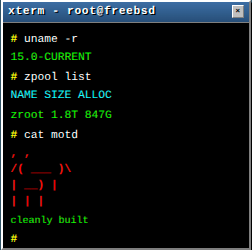
Factorio doesn’t have a native FreeBSD build, but that doesn’t mean you can’t run it on FreeBSD. The Linuxulator, FreeBSD’s Linux binary compatibility layer, handles Linux ELF binaries seamlessly. This article walks through setting up a Factorio headless server inside a Bastille jail, complete with firewall rules for public access.
Prerequisites
This guide assumes you already have:
- A FreeBSD host (14.x or later) with Bastille installed
- A working bridge network for jails (see my previous article on FreeBSD jail infrastructure)
- A Factorio account to download the headless server
Enabling the 64-bit Linuxulator
The Factorio server is a 64-bit Linux binary. FreeBSD’s Linuxulator needs to be loaded on the host system before jails can use it.
Add to /boot/loader.conf on the host:
linux64_load="YES"
Reboot, or load it immediately:
kldload linux64
You can verify it’s loaded:
$ kldstat | grep linux
 9    1 0xffffffff827fa000    619f8 linux64.ko
10    2 0xffffffff8285c000    20970 linux_common.ko
Creating the Jail
Create a standard VNET jail attached to your existing bridge. In this example, I’m using the bastille0 bridge with a private IPv4/IPv6 address pair:
bastille create -B factorio 14.3-RELEASE 10.254.252.98 bastille0
Configure the jail’s network in its /etc/rc.conf:
ifconfig_e0b_factorio_name="vnet0"
ifconfig_vnet0="inet 10.254.252.98 netmask 255.255.255.0"
ifconfig_vnet0_ipv6="inet6 2001:db8:8000::98/64"
defaultrouter="10.254.252.1" # That's the hosts IP address on the bridge bastille0
ipv6_defaultrouter="2001:db8:8000::1" # That's the hosts IPv6 address on the bridge bastille0

syslogd_flags="-ss"
sendmail_enable="NO"
sendmail_submit_enable="NO"
sendmail_outbound_enable="NO"
sendmail_msp_queue_enable="NO"
cron_flags="-J 60"

linux_enable="YES"
The key line is linux_enable="YES" - this enables the Linux compatibility layer inside the jail.
Start the jail:
bastille start factorio
Installing Linux Userland
Inside the jail, install the Rocky Linux 9 base package. This provides the necessary Linux shared libraries:
bastille cmd factorio pkg install -y linux_base-rl9
This pulls in a minimal Linux userland including glibc, which the Factorio binary needs. The installed packages are lightweight:
linux_base-rl9-9.6_1 Base set of packages needed in Linux mode (Rocky Linux 9.6)
Creating the Factorio User
Create a dedicated user to run the server:
bastille cmd factorio adduser
Follow the prompts - the defaults are fine. I used factorio as the username with /home/factorio as the home directory. When prompted for the shell, /bin/sh is a safe choice.
Downloading and Extracting Factorio
Enter the jail and switch to the factorio user:
bastille console factorio
su - factorio
Download and extract the server. You can use FreeBSD’s built-in fetch or install wget:
fetch -o factorio-headless.tar.xz "https://factorio.com/get-download/stable/headless/linux64"
tar xf factorio-headless.tar.xz
rm factorio-headless.tar.xz
This creates a factorio/ directory with the server files. You can verify the binary is a Linux ELF:
$ file factorio/bin/x64/factorio
factorio/bin/x64/factorio: ELF 64-bit LSB pie executable, x86-64, version 1 (SYSV),
dynamically linked, interpreter /lib64/ld-linux-x86-64.so.2, for GNU/Linux 3.2.0,
with debug_info, not stripped
Configuring the Server
Factorio stores its configuration in factorio/data/server-settings.json. Copy the example and customize it:
cd factorio
cp data/server-settings.example.json data/server-settings.json
Edit at minimum:
name: Your server’s public namedescription: What players will see in the server browservisibility: Set to{"public": true, "lan": true}if you want it listedusernameandpassword: Your Factorio account credentials (required for public servers)game_password: Optional password for players to join
Running the Server
When running under the Linuxulator, Factorio can’t automatically detect its installation directory and defaults to looking in /usr/share/factorio. The --executable-path flag tells it where to find the game data.
Quick Start with tmux
The simplest approach is running the server in a tmux session. This keeps the console accessible and survives disconnections. Note that ~/factorio expands to /home/factorio/factorio since the home directory contains the extracted factorio/ folder:
tmux new-session -d -s factorio
tmux send-keys -t factorio 'cd ~/factorio && bin/x64/factorio --executable-path ~/factorio/bin/x64/ --start-server-load-latest --server-settings ./data/server-settings.json' Enter
To attach to the console later:
tmux attach -t factorio
To create a new map (run from within ~/factorio):
bin/x64/factorio --executable-path ~/factorio/bin/x64/ --create ./saves/myworld.zip
Then start the server with that save:
bin/x64/factorio --executable-path ~/factorio/bin/x64/ --start-server ./saves/myworld.zip --server-settings ./data/server-settings.json
Proper rc.d Service Script
For production use, an rc.d script integrates with FreeBSD’s service management. Create /usr/local/etc/rc.d/factorio inside the jail:
#!/bin/sh

# PROVIDE: factorio
# REQUIRE: LOGIN
# KEYWORD: shutdown

. /etc/rc.subr

name="factorio"
rcvar=factorio_enable

load_rc_config $name

: ${factorio_enable:="NO"}
: ${factorio_user:="factorio"}
: ${factorio_dir:="/home/factorio/factorio"}
: ${factorio_savefile:="--start-server-load-latest"}
: ${factorio_flags:=""}

pidfile="/var/run/factorio/${name}.pid"

start_cmd="${name}_start"
stop_cmd="${name}_stop"
status_cmd="${name}_status"

factorio_start()
{
    install -o ${factorio_user} -g ${factorio_user} -m 755 -d /var/run/factorio
    echo "Starting ${name}."
    # -S: don't send SIGHUP to child on exit, -T: set process title for ps
    /usr/sbin/daemon -u ${factorio_user} -p ${pidfile} -S -T ${name} \
        ${factorio_dir}/bin/x64/factorio \
        --executable-path ${factorio_dir}/bin/x64/ \
        ${factorio_savefile} \
        --server-settings ${factorio_dir}/data/server-settings.json \
        ${factorio_flags}
}

factorio_status()
{
    if [ -f "${pidfile}" ] && kill -0 $(cat "${pidfile}") 2>/dev/null; then
        echo "${name} is running as pid $(cat ${pidfile})."
        return 0
    fi
    echo "${name} is not running."
    return 1
}

factorio_stop()
{
    if [ -f "${pidfile}" ]; then
        echo "Stopping ${name}."
        kill -TERM $(cat "${pidfile}") 2>/dev/null
        sleep 1
        rm -f "${pidfile}"
    else
        echo "${name} is not running."
        return 1
    fi
}

run_rc_command "$1"
Make it executable and enable it:
chmod +x /usr/local/etc/rc.d/factorio
sysrc factorio_enable=YES
Now you can manage the server with standard commands:
service factorio start
service factorio stop
service factorio status
To specify a particular save file instead of loading the latest:
sysrc factorio_savefile="--start-server /home/factorio/factorio/saves/myworld.zip"
Firewall Configuration
Factorio uses UDP port 34197 by default. Add redirect and pass rules to your host’s /etc/pf.conf:
# Macros
ext_if = "vtnet0"
host_ipv6 = "2001:db8::f3d1"
factorio_v4 = "10.254.252.98"
factorio_v6 = "2001:db8:8000::98"

# Redirect incoming Factorio traffic to the jail
rdr on $ext_if inet proto udp to ($ext_if) port 34197 -> $factorio_v4
rdr on $ext_if inet6 proto udp to $host_ipv6 port 34197 -> $factorio_v6

# Allow the traffic through
pass in quick on $ext_if inet proto udp from any to $factorio_v4 port 34197 keep state
pass in quick on $ext_if inet6 proto udp from any to $factorio_v6 port 34197 keep state
Test and reload PF:
pfctl -nf /etc/pf.conf && pfctl -f /etc/pf.conf
Verifying the Setup
If using the rc.d script, start the server and check the logs (inside the jail):
service factorio start
tail -f /home/factorio/factorio/factorio-current.log
A successful startup looks like this:
   0.000 2025-12-20 12:02:46; Factorio 2.0.72 (build 84292, linux64, headless)
   0.000 Operating system: Linux
   0.000 Config path: /usr/home/factorio/factorio/config/config.ini
   0.000 Read data path: /usr/home/factorio/factorio/data
   0.000 Write data path: /usr/home/factorio/factorio [108461/109184MB]
   0.009 System info: [CPU: AMD EPYC-Rome Processor, 8 cores, RAM: 15957 MB]
   0.010 Running in headless mode
   ...
   2.404 Hosting game at IP ADDR:({0.0.0.0:34197})
   2.739 Info ServerMultiplayerManager.cpp:808: changing state to(InGame)
The “Operating system: Linux” line is the key indicator - it proves the Linuxulator translation layer is active and the binary genuinely believes it’s running on Linux. Players can now connect via your server’s public IP on port 34197.
Troubleshooting
“error while loading shared libraries”: The Linux userland isn’t installed or linux_enable isn’t set. Install linux_base-rl9 and ensure /etc/rc.conf has linux_enable="YES".
Server starts but players can’t connect: Check your PF rules. Ensure both the rdr and pass rules are in place for UDP 34197. Use tcpdump -i vtnet0 udp port 34197 on the host to verify traffic is arriving.
“Failed to find the system certificate authority file”: This warning is harmless. Factorio falls back to its bundled certificate file for HTTPS requests to the auth server.
“Error configuring paths: There is no package core in /usr/share/factorio”: The --executable-path flag is missing. Under the Linuxulator, Factorio can’t auto-detect its installation directory. Always specify --executable-path /path/to/factorio/bin/x64/ when starting the server.
Summary
Running Factorio on FreeBSD is straightforward thanks to the Linuxulator:
- Load
linux64.koon the host - Create a jail with
linux_enable="YES" - Install
linux_base-rl9for the Linux shared libraries - Download the headless server and run it
The Linuxulator handles the translation transparently - the Factorio binary thinks it’s running on Linux. Combined with FreeBSD jails for isolation and PF for traffic control, you get a clean, manageable game server setup.
The factory must grow. Even on FreeBSD.
References
- Factorio Headless Server Download
- Factorio Dedicated Server Wiki
- FreeBSD Handbook: Linux Binary Compatibility
- BastilleBSD Documentation
- PF - The OpenBSD Packet Filter
Thanks to the FreeBSD team for maintaining the Linuxulator, making it possible to run Linux-only software without virtualization overhead.